
Prerequisites
Before you begin, make sure you have:- PostgreSQL 9.6 or later.
- The host, port, and database name of the PostgreSQL instance you want to connect.
- Admin access to create a role (or an existing role Modus can log in as). We recommend a dedicated read-only role (see below).
- Network access from Modus to your database (see Network access).
Set up a read-only role
Modus only ever reads your data — it never writes, creates tables, or modifies your schema. Create a dedicated least-privilege role for Modus. First, create the login role and allow it to connect. Roles are cluster-wide, so run this once (from any database, as a superuser or a role withCREATEROLE):
- PostgreSQL 14+ (simplest)
- Per-schema (any version / scoped access)
PostgreSQL 14 and later ship a built-in
pg_read_all_data role that grants
read access to every table in every schema — no per-schema grants needed:ALTER DEFAULT PRIVILEGES only affects tables created by the role that runs
it. If a different role owns your tables (for example, a dedicated application
user), add FOR ROLE <owner> — e.g.
ALTER DEFAULT PRIVILEGES FOR ROLE <owner> IN SCHEMA <schema> GRANT SELECT ON TABLES TO modus_readonly;pg_catalog and information_schema are readable by default in PostgreSQL,
so no extra grants are needed for Modus to discover your table and column
metadata.On managed PostgreSQL (AWS RDS, Google Cloud SQL, Azure, Supabase, etc.),
creating roles may require a provider-specific admin role or console step.
Refer to your provider’s docs if
CREATE ROLE is not permitted.Network access
If your database is behind a firewall, security group, or IP allowlist, allow Modus’s egress IP addresses so it can reach your instance. See IP Allowlisting for the addresses and setup steps.Connect in Modus
1
Open the PostgreSQL connection form
- Log into Modus.
- Click Integrations in the left sidebar.
- Find the PostgreSQL card under Databases and click Connect.
2
Fill in the connection details
Complete the form using the field reference below.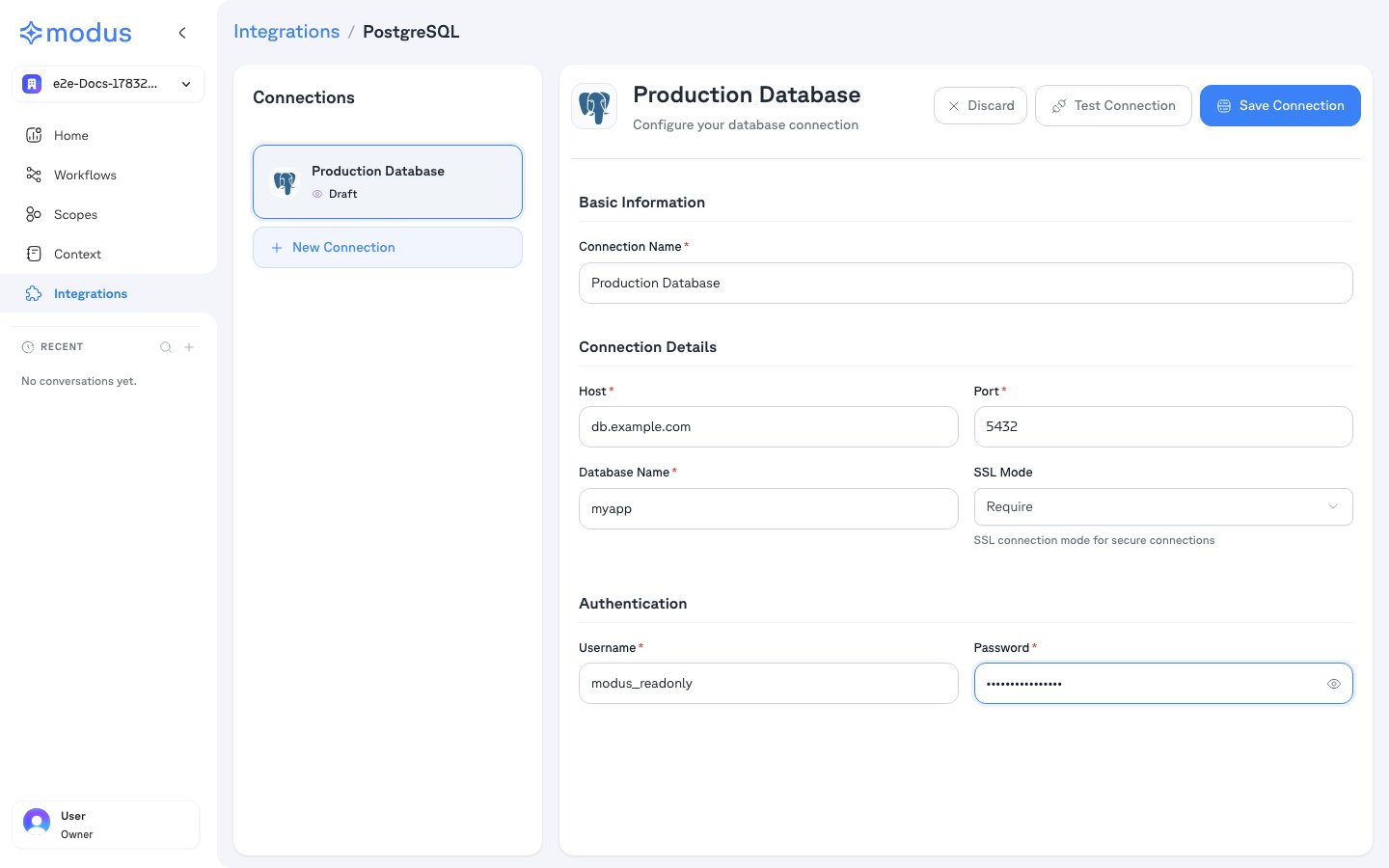
3
Test and save
- Click Test Connection to verify Modus can reach your database.
- Click Save Connection.
4
Select schemas
After saving, Modus lists the databases and schemas the role can access.
Select the schemas you want Modus to use as context, then click Save schemas.
Nothing is scanned without your explicit selection.
Connection form field reference
Basic information
Connection details
Authentication
SSL modes
Troubleshooting
Verification
Your PostgreSQL database is now connected. Modus turns the selected schemas, tables, and columns into context so Modus can give accurate, data-aware answers. Need help? Contact us at support@getmodus.com.Modus connects read-only and requests only the minimum permissions needed to
understand and query your data. All credentials are encrypted and stored in AWS
Secrets Manager — your password is never stored in plaintext.