
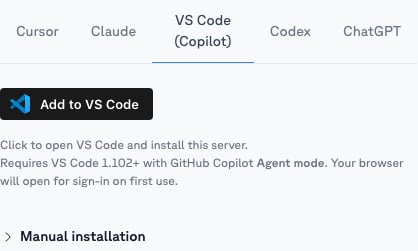
One-click install
Open the scope you want in Modus, go to its MCP tab, click the VS Code tab, and use the install button — it opens VS Code and registers that scope’s server for you. (To connect all of Modus instead, use Account → MCP.)Manual configuration
Copy the scope’s URL from its MCP tab and add Modus to.vscode/mcp.json in
your workspace:
https://mcp.getmodus.com/modus?toolsets=context) from Account → MCP.
Sign in and use
1
Start the server
Open Copilot Chat, switch to Agent mode, and start the Modus server when
prompted (or via MCP: List Servers in the command palette).
2
Authorize
Your browser opens the Modus sign-in. Approve access and choose your
organization.
3
Ask
Ask org-grounded questions in agent mode — Copilot discovers your published
scopes and workflows and routes questions through them.