
Prerequisites
Before you begin, make sure you have:- A Google Cloud Platform account with access to BigQuery.
- A GCP Project containing the BigQuery datasets you want Modus to catalog.
- Sufficient IAM permissions to create service accounts and assign roles in that project.
How It Works
1. Connect your BigQuery project
You connect Modus to BigQuery using one of two secure authentication methods:- Service Account Key — Provide a GCP service account JSON key with access to your BigQuery project.
- Workload Identity Federation — A keyless, more secure option that federates authentication between AWS and GCP without exchanging long-lived credentials.
Your credentials are encrypted and stored in AWS Secrets Manager.
2. Select your datasets
After connecting, Modus lists all available datasets in your BigQuery project. You choose which datasets you want Modus to analyze — nothing is scanned without your explicit selection.GCP Permissions
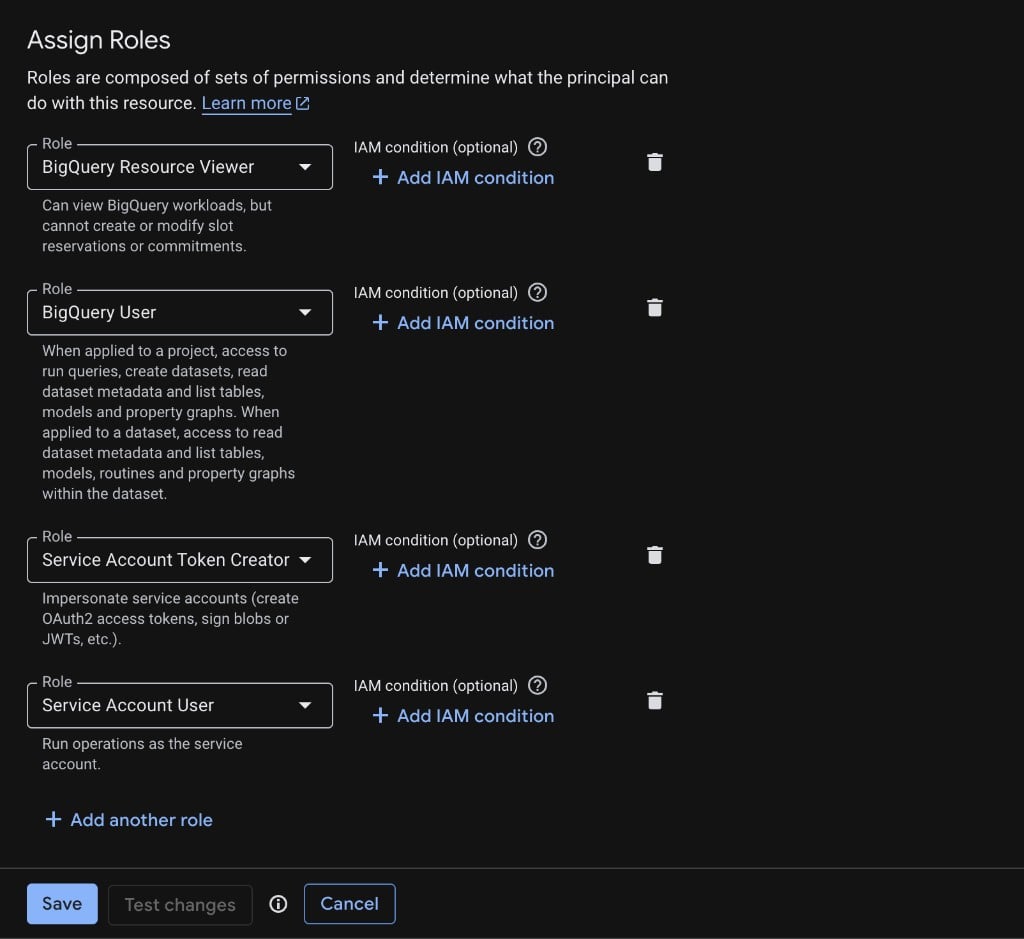
Before connecting, grant your service account the required roles. The roles depend on your chosen authentication method.- Service Account Key
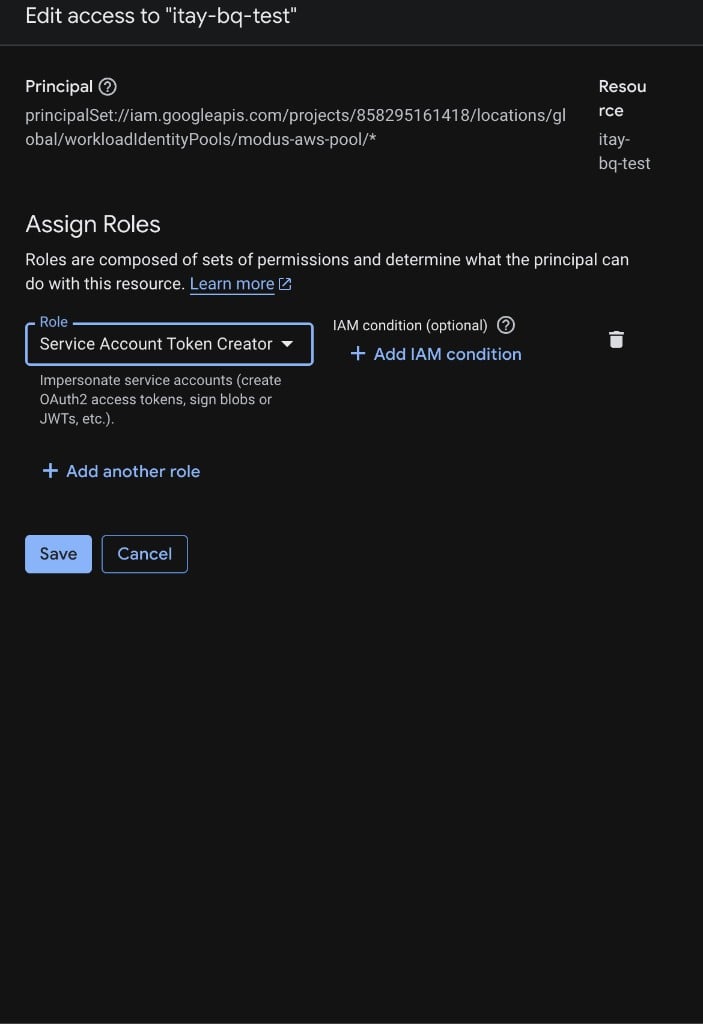
- Workload Identity Federation
Choose a permission set based on the level of access you want Modus to have:
- Read / Write
- Read Only
For workflows that need to create or modify tables (e.g. materializing results):
GCP Setup
Choose your authentication method and follow the corresponding guide.- Service Account Key
- Workload Identity Federation
1
Create a service account
- Open the Google Cloud Console and select your project.
- Go to IAM & Admin > Service Accounts.
- Click + Create Service Account.
- Enter a descriptive name (e.g.
modus-integration) and click Create and Continue.
2
Assign BigQuery roles
In the Grant this service account access to project step:
- Click the Select a role dropdown and add each role from the permissions table above.
- Click + Add Another Role to add additional roles as needed.
- Click Continue, then Done.
3
Generate and download a JSON key
- In the Service Accounts list, find the account you just created.
- Click the service account name to open its detail page.
- Go to the Keys tab.
- Click Add Key > Create new key.
- Select JSON as the key type and click Create.
- A
.jsonfile will download automatically — store it securely. You will paste its contents into Modus in a later step.
Connect in Modus
1
Open the Integrations page
- Log into Modus.
- Click Integrations in the left sidebar, then select BigQuery.
- Click + New Connection.
2
Fill in connection details
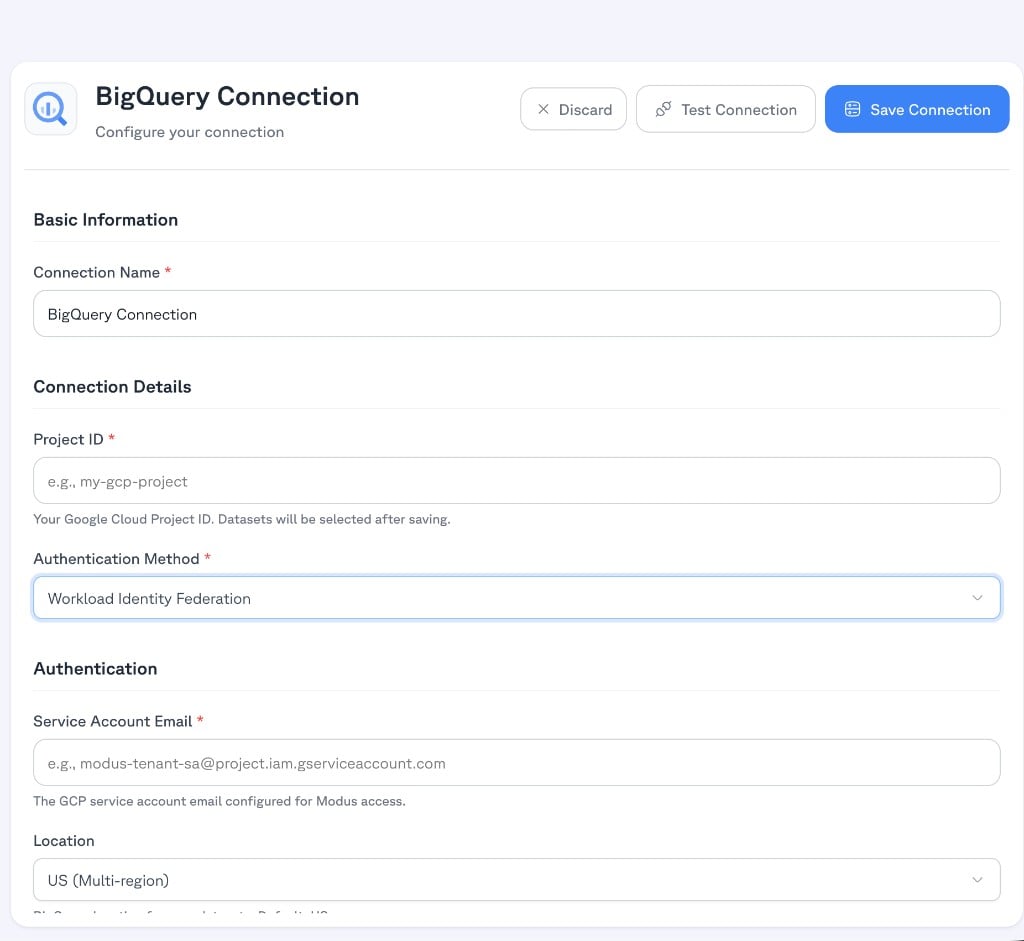
Enter a Connection Name and your Project ID (your Google Cloud project identifier).
Then choose an Authentication Method.
- Service Account Key
- Workload Identity Federation
Select Service Account Key from the Authentication Method dropdown.Open the JSON key file you downloaded from GCP in a text editor, copy
its entire contents, and paste it into the Service Account Key field.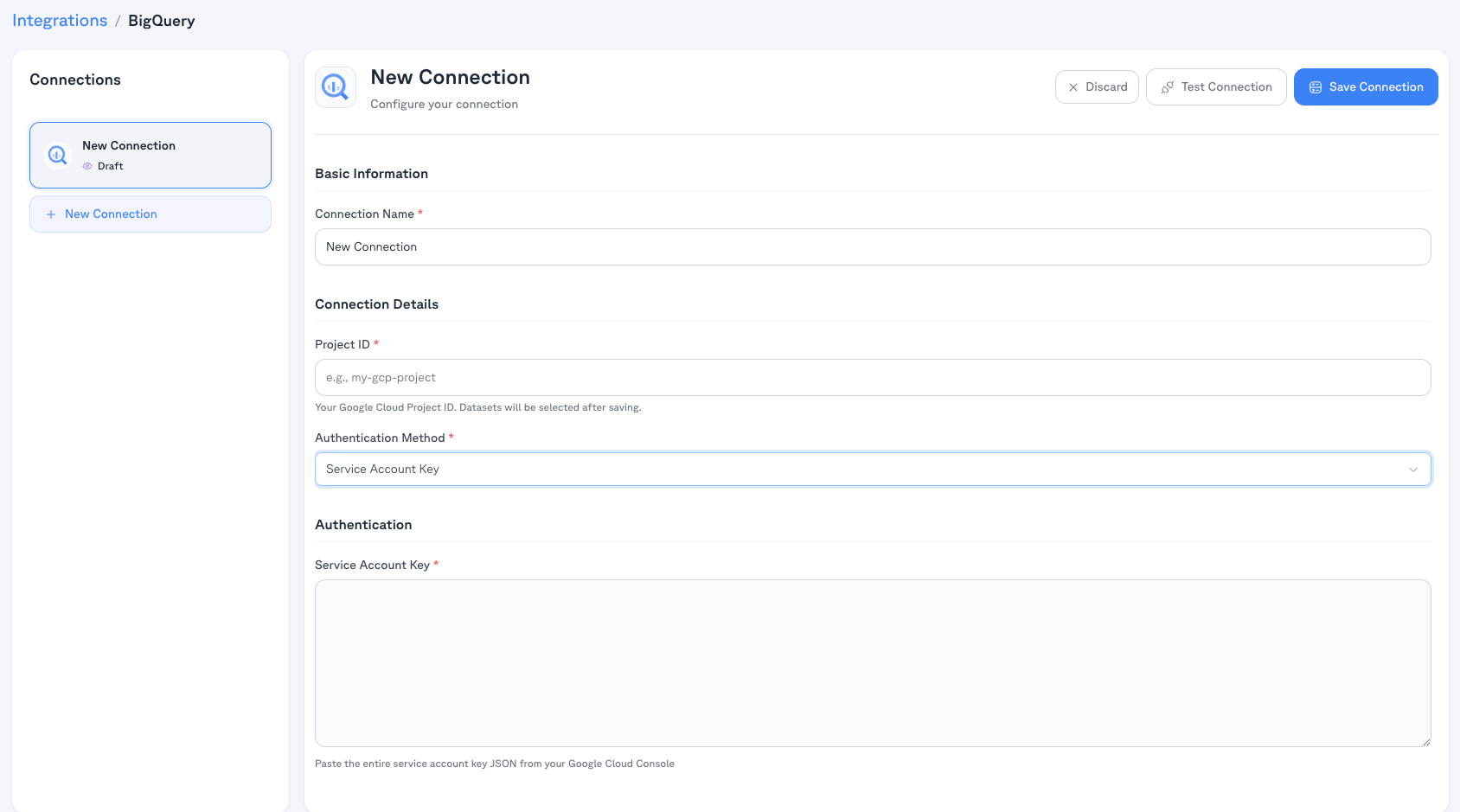
3
Test and save
- Click Test Connection to verify Modus can reach your BigQuery project.
- Click Save Connection.
4
Select datasets
After saving, Modus will list all available datasets in your project.
Select the datasets you want Modus to catalog and analyze, then confirm your selection.
Connection form field reference
Basic information
Connection details
Authentication
Select your preferred Authentication Method from the dropdown.- Service Account Key
- Workload Identity Federation
Verification
Your BigQuery project is now connected. Modus will begin cataloging the selected datasets, tables, and views so that Modus can provide context-aware answers about your data.All credentials are encrypted and stored in AWS Secrets Manager. Modus only
requests the minimum permissions needed to catalog and query your data.
Workload Identity Federation is available as a keyless alternative that avoids
long-lived credentials entirely.