
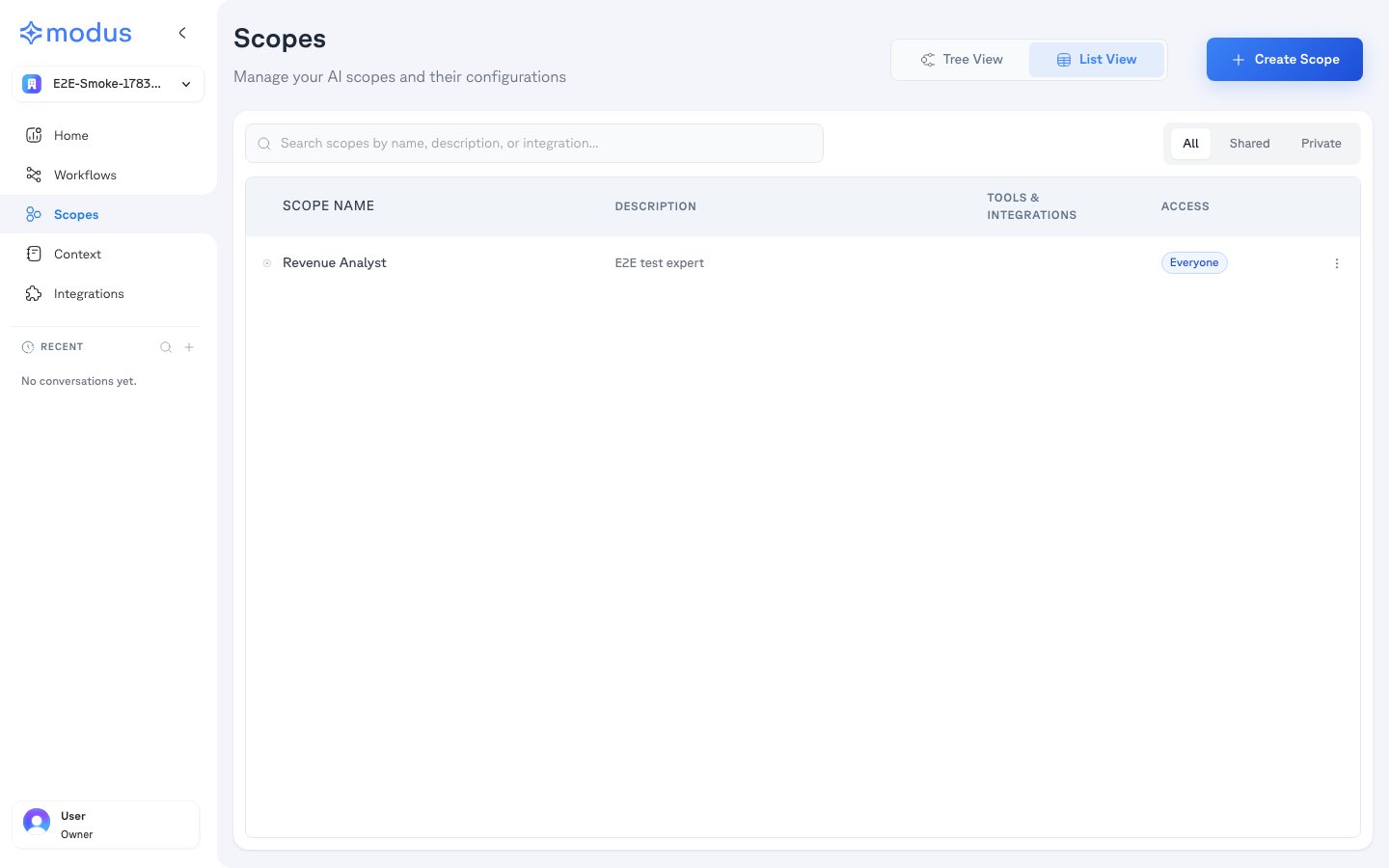
The Scopes list
The list page manages your whole roster:- Create Scope — start a new specialist, or Duplicate an existing one to reuse its setup.
- Tree View / List View — switch between the supervision hierarchy and a flat, searchable table.
- Search and visibility filters (All / Shared / Private) to find scopes fast.
- Each row shows the scope’s description, its tools & integrations, and its access. Badges flag a Draft (never published) or unpublished changes.
- The row menu lets you Publish / Deploy Changes, Duplicate, or Delete.
Configuring a scope
Open a scope to configure it. Everything is organized into tabs, and a live test conversation panel on the right lets you try changes as you make them.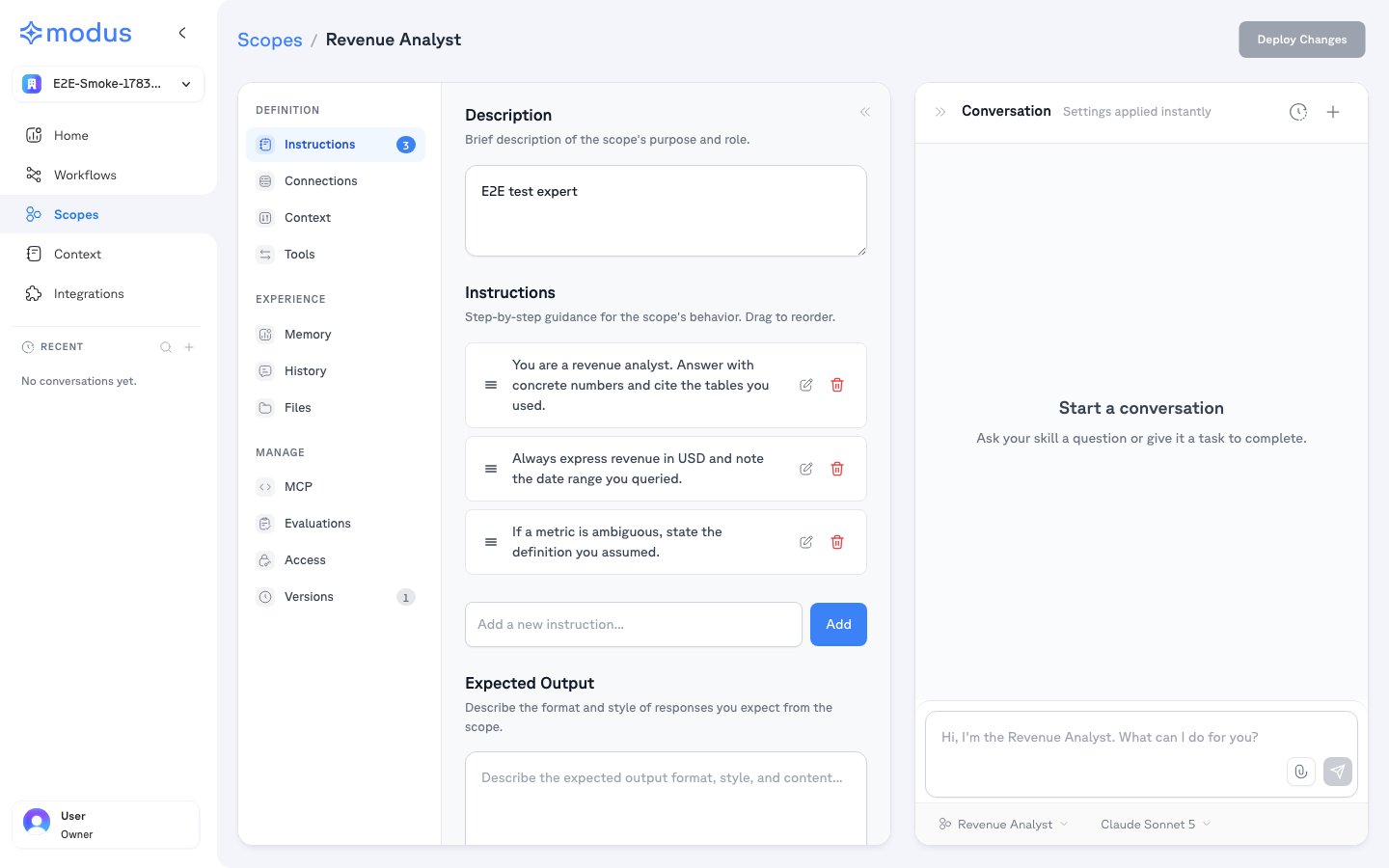
Instructions — how the scope behaves
Instructions — how the scope behaves
A short description of the scope’s role, an ordered, drag-to-reorder list
of instructions (its operating rules), and an optional expected output
format. This is the scope’s system prompt.
Connections — the data and apps it can use
Connections — the data and apps it can use
Select the integrations this scope may query, down to
specific databases and schemas, plus tool-actions for SQL, BI, coding, and
messaging connections. Keeping this tight is what makes a scope focused.
Context — the knowledge it sees
Context — the knowledge it sees
Choose the slice of your context available to this scope —
driven by its connections, plus any specific notes, files, saved queries, or
links you attach. A coverage view shows what’s included.
Tools — general-purpose capabilities
Tools — general-purpose capabilities
Enable the general tools this scope may use (for example web search, file
publishing, and connected app actions). Connection-scoped SQL access lives in
the Connections tab.
Memory — remembering across conversations
Memory — remembering across conversations
Let the scope save and reuse memories from conversations, and search or manage
what it has stored.
History — past conversations
History — past conversations
Lists every conversation with the scope — searchable and filterable by time
and user.
Files — conversation and published files
Files — conversation and published files
Browses conversation files and files the scope has published.
Evaluations — quality checks
Evaluations — quality checks
Define test cases — a task plus an expected output judged by an LLM — and run
them to track whether the scope still behaves as intended after changes.
MCP — connect external AI tools
MCP — connect external AI tools
Exposes the published scope to external AI tools like Claude, Cursor, and
ChatGPT — see Connecting AI tools. Copy per-host install
snippets, toggle Core Tools (
chat, get_context), and choose which
integration tools appear in the MCP catalog.Access — permissions and guardrails
Access — permissions and guardrails
Controls ownership, Shared/Private visibility, group-based Use vs.
Manage permissions, external invites, and safety guardrails.
Versions — history and rollback
Versions — history and rollback
Click Versions in the left nav to open the version history side panel.
Every publish creates a version — review a diff of what changed between versions
and restore a previous configuration if needed.