
Prerequisites
Before you begin, make sure you have:- A dbt Cloud account with the Semantic Layer enabled and a built semantic manifest.
- Your Account URL and Account ID.
- A service token with read access to the Discovery (Metadata) API (see below).
Set up a service token
1
Find your Account URL and Account ID
Both appear in your dbt Cloud URL. The Account URL is your access URL
(e.g.
https://cloud.getdbt.com or a region host like
https://bj284.us1.dbt.com); the Account ID is the number after
/accounts/ in the URL.2
Create the service token
In dbt Cloud, open Account Settings → Service Tokens and create a token
with read access to the Metadata (Discovery) API and to your
accounts/projects/environments. Copy the token — it’s shown once.
3
Confirm the Semantic Layer is built
Make sure each environment you want to sync has a successfully built
semantic manifest — Modus reads metrics and semantic models from it.
Connect in Modus
1
Open the dbt Cloud connection form
- Log into Modus.
- Click Integrations in the left sidebar.
- Find the dbt Cloud card under Semantic Layers and click Connect.
2
Fill in the connection details
Complete the form using the field reference below.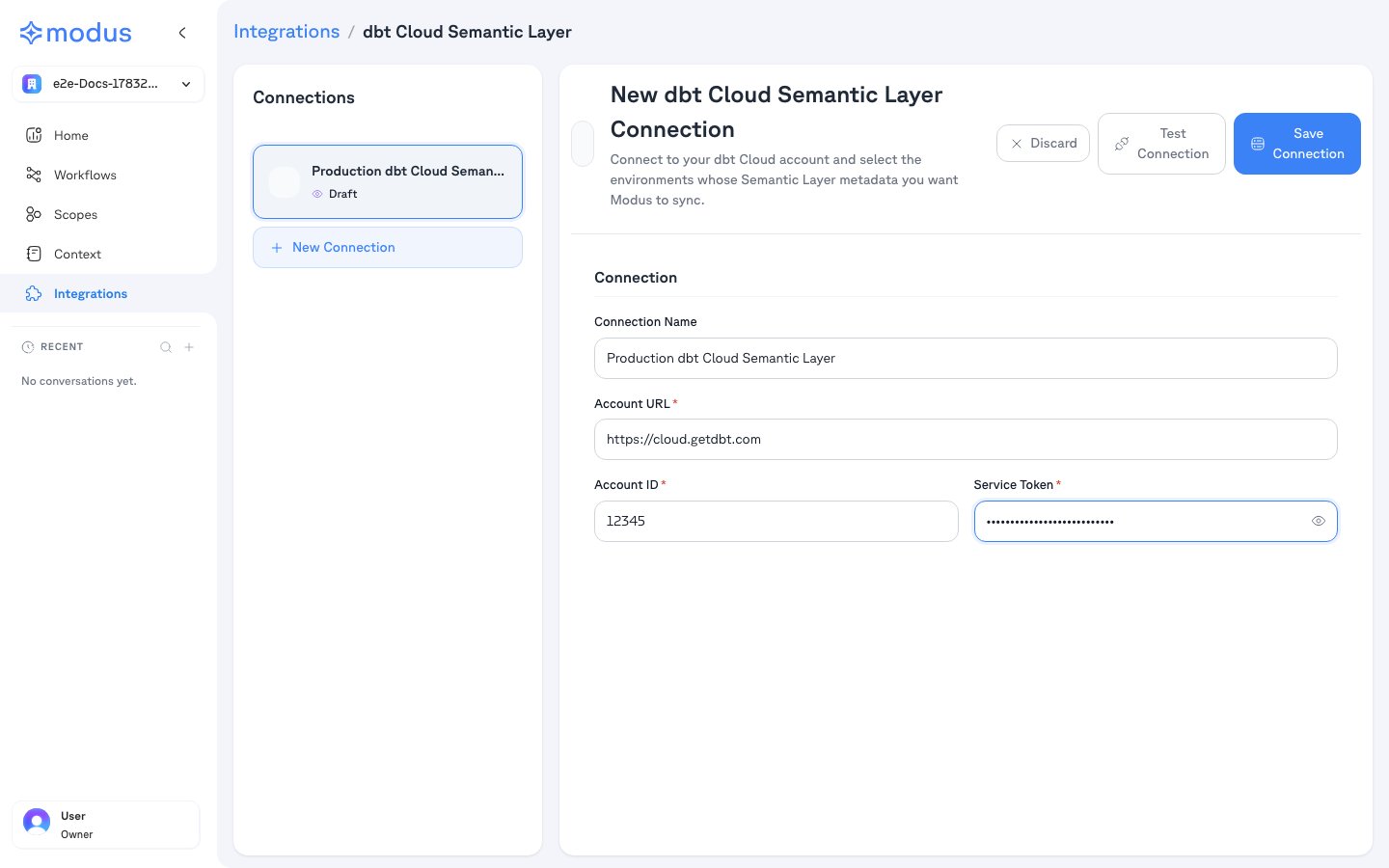
3
Test and save
- Click Test Connection to verify Modus can reach your account.
- Click Save Connection.
4
Select environments
After saving, Modus lists your environments. Select the ones whose Semantic
Layer metadata you want Modus to sync, then save.
Connection form field reference
Troubleshooting
Verification
Your dbt Cloud Semantic Layer is now connected. Modus turns your semantic models, metrics, and saved queries into context so Modus can answer metrics-aware questions accurately. Need help? Contact us at support@getmodus.com.Modus connects read-only and requests only the minimum access needed to
understand your semantic layer. Your service token is encrypted and stored in
AWS Secrets Manager — never in plaintext.