Context Statistics
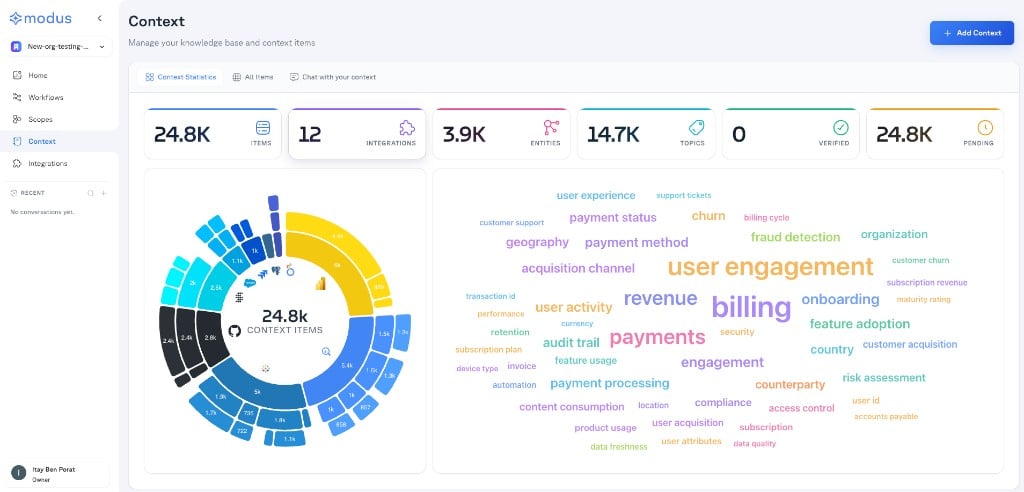
The default view is an at-a-glance dashboard of your knowledge base:- Items — total context items.
- Integrations — how many connected sources have contributed context.
- Entities — the tables, columns, and objects Modus has learned about.
- Topics — the business themes those items relate to.
- Verified vs. Pending — how much of your context has been reviewed and trusted.
Everything you can store as context
A context item is a single unit of knowledge about your data. Modus mines many types automatically from BI and data platforms (metric and model definitions, table and column descriptions, relationships, dashboards, and more), and you can add these yourself from Add Context: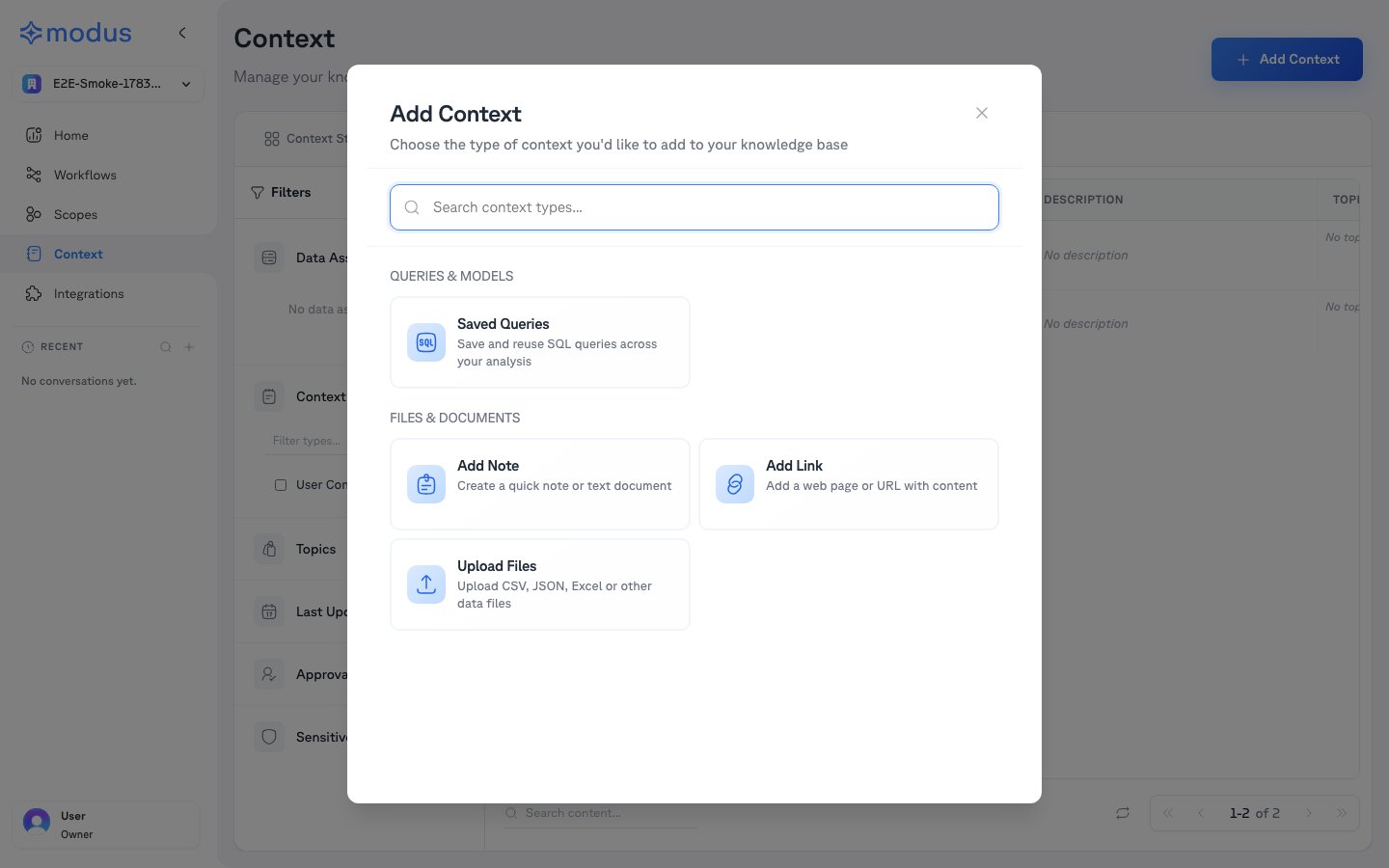
Saved Queries
Save and reuse SQL queries across your analysis so scopes can build on proven logic.
Add Note
Capture a definition, caveat, or piece of tribal knowledge as a quick text document.
Add Link
Point Modus at a web page or URL whose content should inform answers.
Upload Files
Upload CSV, JSON, Excel, or other data files to bring in reference data.
Browsing and filtering All Items
The All Items view is a filterable, paginated table of every context item — its type, content, description, topics, verification status, and last update.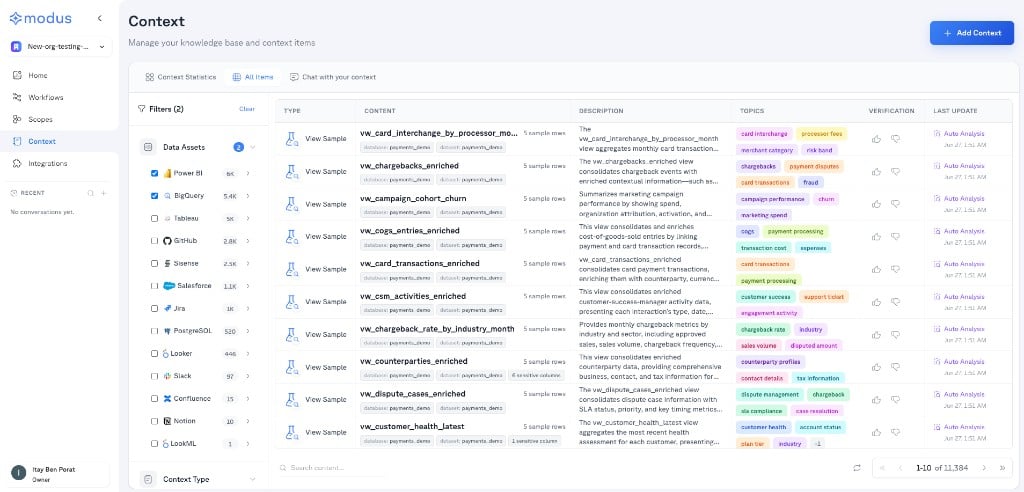
- Data Assets — drill into a specific connection, database, or schema.
- Context Type — filter by the kind of item (notes, saved queries, mined definitions, and more).
- Topics — items tagged with a business theme.
- Last Updated — by time window and by source (AI Generated, Auto Analysis, Manual Edit).
- Approval Status — Approved, Unreviewed, or Rejected.
- Sensitive Data — items containing detected sensitive information types.
Verifying context
Context quality compounds. As you review items you can mark them Approved (trusted), Rejected (wrong — Modus stops relying on them), or leave them Unreviewed. Editing an item’s content or description automatically marks it approved. The Verified and Pending cards track your progress.Chat with your context
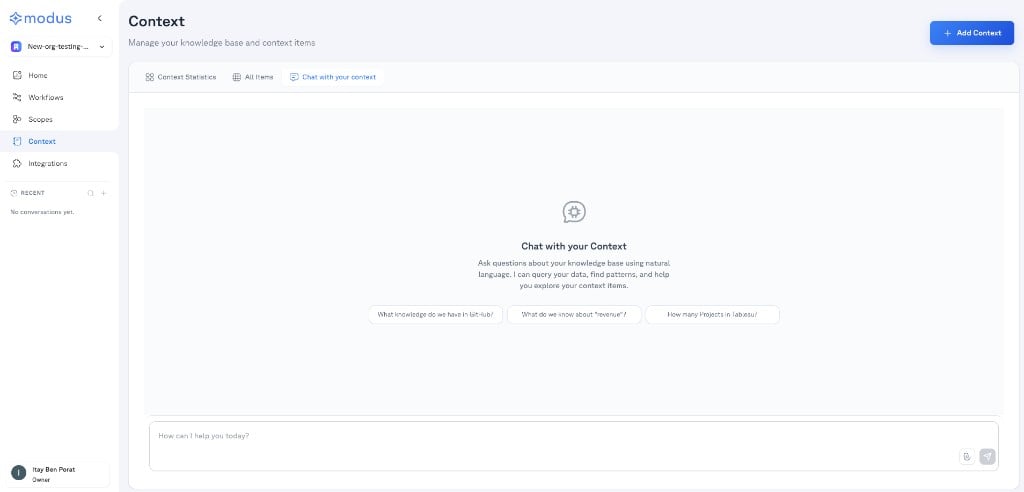
The Chat with your context view lets you talk to your knowledge base in plain language — ask what Modus knows, find patterns, and explore items (“What do we know about revenue?”, “How many projects in Tableau?”).