
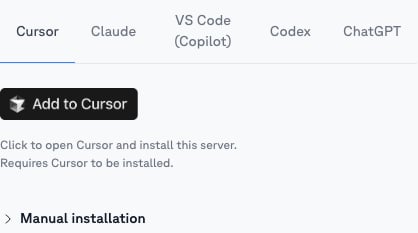
One-click install (recommended)
1
Copy the install link from Modus
Open the scope you want in Cursor, go to its MCP tab,
and click the Cursor tab, then the Add to Cursor button — it opens
Cursor and pre-fills that scope’s server. (To connect all of Modus instead,
use Account → MCP.)
2
Approve and sign in
Confirm the new MCP server in Cursor. Your browser opens the Modus sign-in —
approve access and choose your organization.
Manual configuration
Prefer to paste it yourself? Copy the scope’s URL from its MCP tab and add it to~/.cursor/mcp.json (all projects) or .cursor/mcp.json (one project):
https://mcp.getmodus.com/modus?toolsets=context) from Account → MCP.
Cursor handles the OAuth sign-in automatically; a Personal Access Token also
works — see Authentication.
Using it
Ask org questions in the chat panel — Cursor calls Modus when your question needs organizational knowledge. Published scopes also appear as slash commands (for example/scope-revenue-analytics) to point the conversation at one
expert.
Need help? Contact us at support@getmodus.com.