
Chatting with Modus
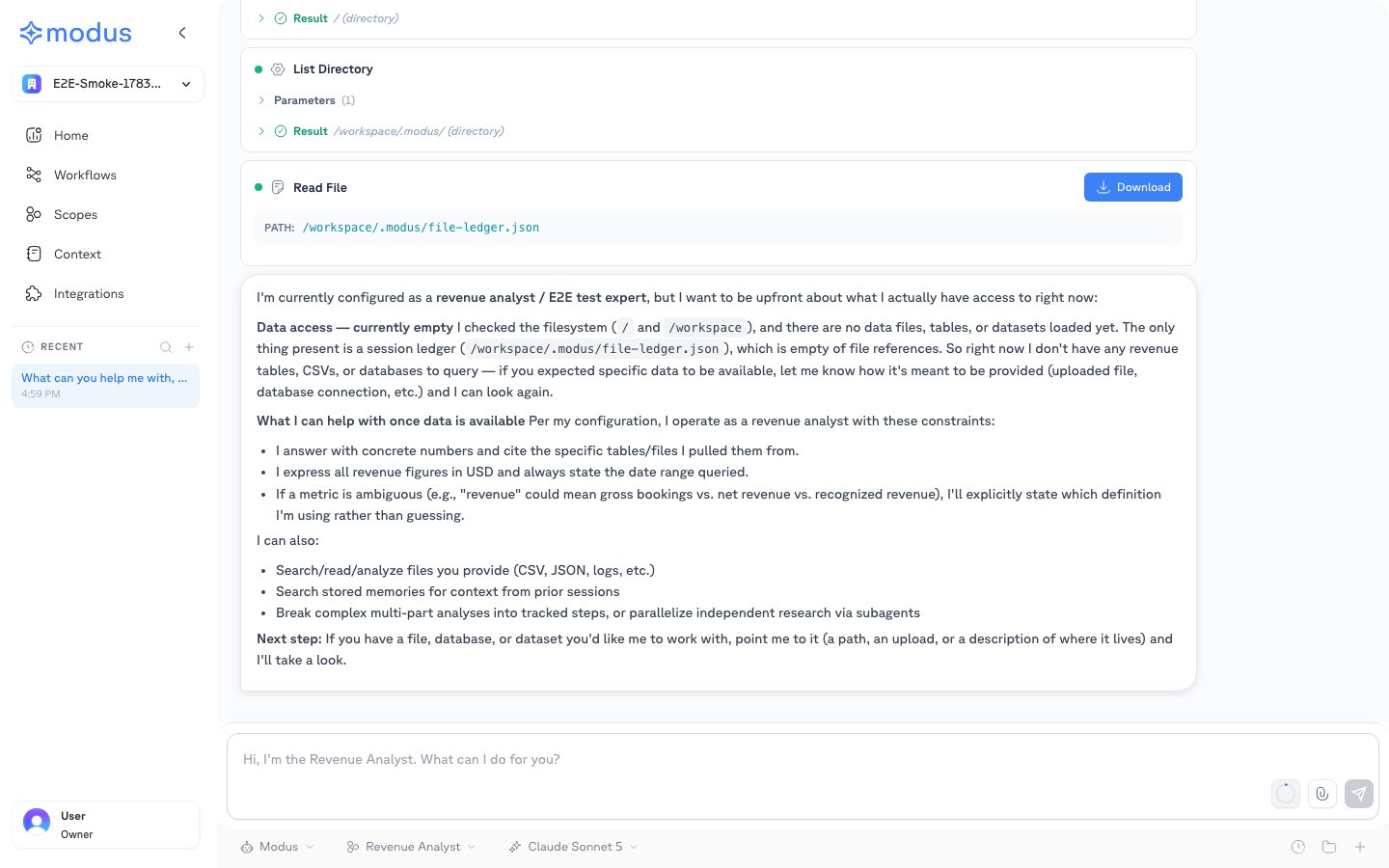
Type a message and Modus answers using the context it has built from your integrations. By default you’re talking to Modus, the general assistant that spans your whole environment. Modus doesn’t just reply from memory — it can read your files, query your connected data, and search stored knowledge, showing each step (like the List Directory and Read File steps above) so you can see exactly how it reached an answer. Every conversation gets its own workspace: files a scope creates or edits during a chat live in that conversation’s filesystem, and useful facts can be saved to memory for next time.The controls below the message box
- Assistant / workflow selector — start from the default Modus assistant, or pick a conversation-triggered workflow to run it right in the chat.
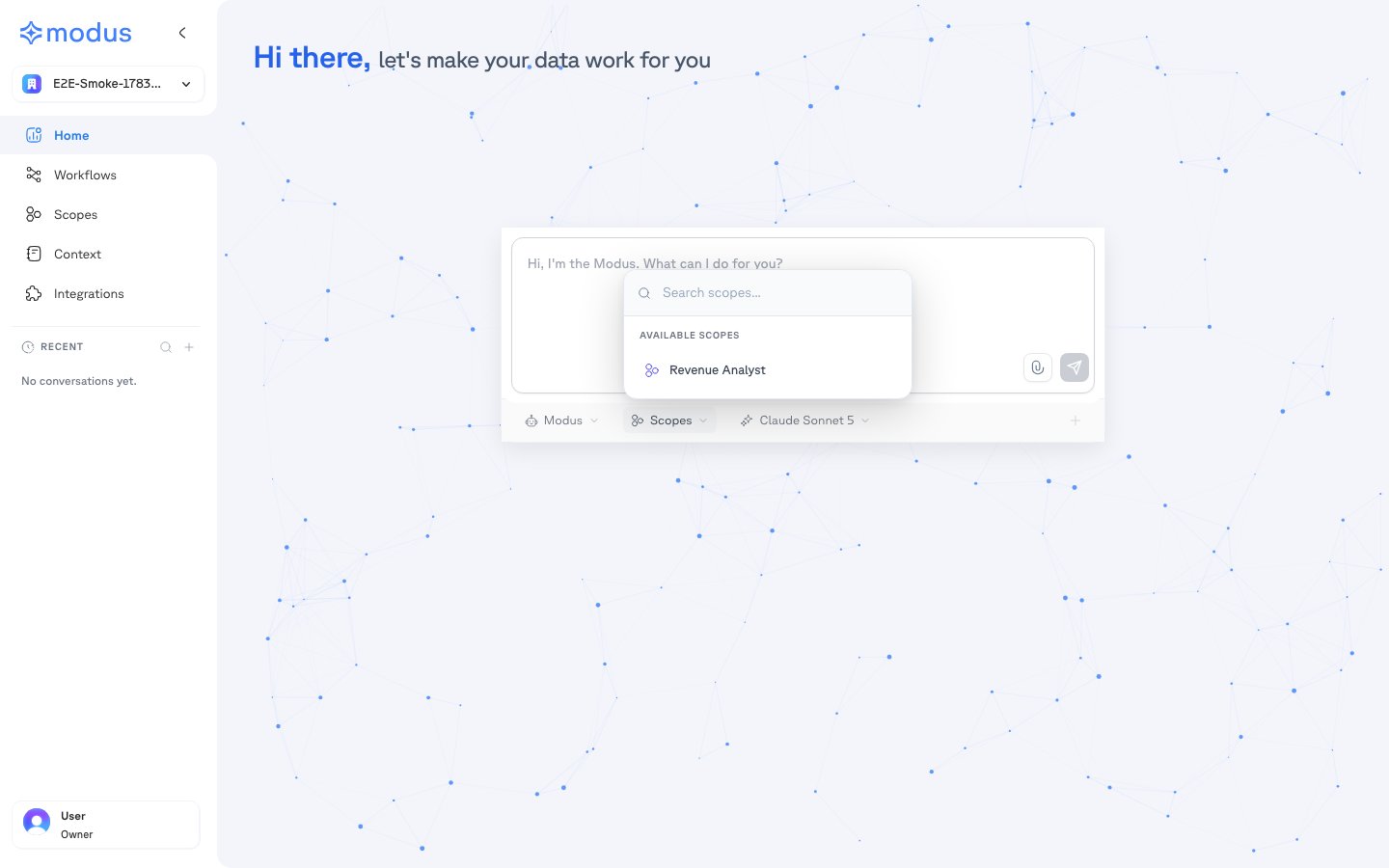
- Scopes — tag one or more scopes to bring in a specialist’s instructions and focused context (shown above). Search and select the experts you want; the conversation then answers with their expertise and their slice of your data.
- Model selector — choose which AI model powers the response, grouped by Most Capable, Balanced, Fastest, and Most Affordable so you can trade off quality, speed, and cost per task.
- Attachments — attach a file to the message to have Modus analyze it directly.
Tagging scopes for specialist help
A scope is a specialist AI configured for a specific domain, with its own instructions and a focused slice of context. Open the Scopes dropdown, search, and select the specialists you want — the chat then answers with their expertise instead of the general assistant. Tag more than one to combine specialists in a single conversation.Running workflows inline
Pick a conversation-triggered workflow from the assistant selector to run a multi-step pipeline from the chat. Modus renders each step — AI steps, conditions, actions, and human-approval gates — inline as it runs, so you can follow the pipeline and step in when a run needs your approval.Managing conversations
Your chats are saved. Near the message box you’ll find:- Conversation history — reopen a recent conversation. Recent chats also appear in the sidebar.
- Conversation filesystem — browse the folders and files a scope created or modified during the chat, and download them.
- New conversation — start a fresh thread.