
Most people only need Modus. If you install both, sign in to each and choose
the same organization.
Want just one expert? Open a scope → MCP tab →
Claude and copy its 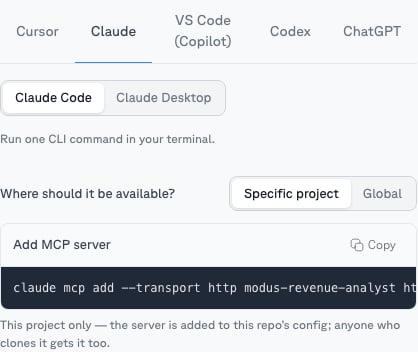
claude mcp add command to register only that scope —
project-local or global. The rest of this guide covers connecting all of Modus.Claude Code
1
Add the Modus marketplace (once)
2
Install the plugin
3
Sign in
When Claude prompts you to connect Modus (or run
/mcp), your browser opens
a Modus sign-in. Approve the access and — if you belong to more than one —
choose your organization./scope-revenue-analytics.
Claude Desktop
Option A — plugins (recommended):1
Add the marketplace
Go to Customize → Personal plugins → + → Add marketplace and enter
modus-data/modus-claude-plugin, then Sync.2
Install and connect
Install Modus (and optionally Modus Admin) from the list. When
prompted, click Connect, sign in in the browser, and choose your
organization.
mcp-remote proxy. Copy the ready-made snippet from a scope’s
MCP tab (or Account → MCP for all of Modus) into your
claude_desktop_config.json:
Claude Desktop doesn’t support slash commands from MCP servers — use the +
attachment menu to pull in a scope, or simply mention it in your question.