
How connecting works
1
Open the app in Integrations
Log into Modus, click Integrations in the left
sidebar, find the app’s card, and click Connect.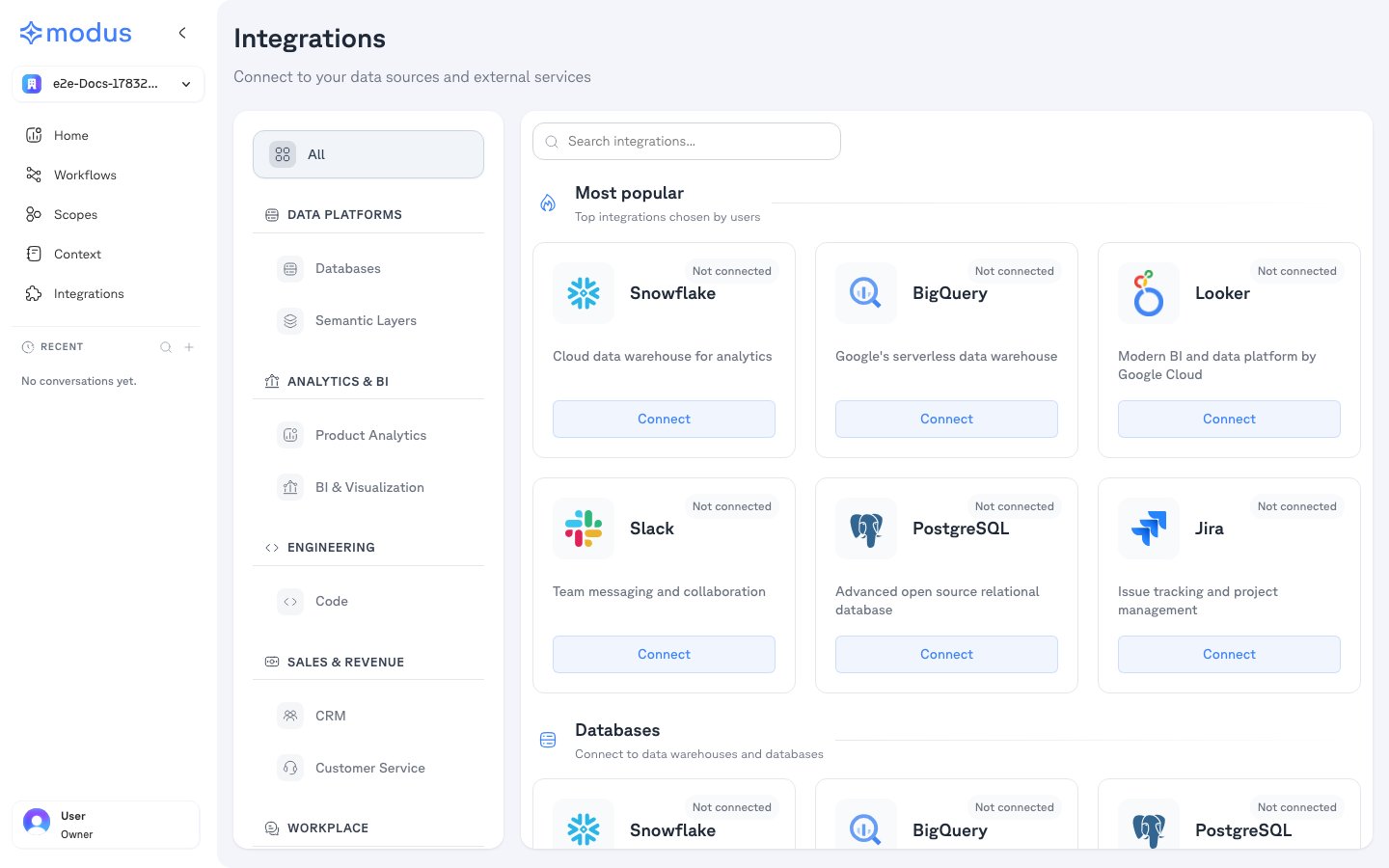
2
Authorize in the secure popup
A secure popup opens (hosted by our managed-auth provider). Sign in to the app
and approve the access Modus requests. Some apps ask for an app-specific detail
here — for example your Zendesk subdomain, your Atlassian site, or
which Google account to use.
3
Choose what to share
Back in Modus, many apps let you scope exactly what Modus can access — for
example specific Slack channels, Jira projects, Confluence spaces, or GitHub
repositories. Nothing outside your selection is used.
Who can connect
Most apps let any member connect, but some restrict this. Depending on the app and your organization’s settings, an admin may need to approve Modus — for example a Slack Workspace Owner, a Microsoft 365 admin for Teams, a GitHub organization owner, or an Atlassian site admin. In every case Modus only accesses what the connecting account can access. Each app’s guide lists its specific requirement.Workspace vs. personal connections
- Workspace — a shared, org-level connection. Everyone in your Modus organization uses it. This is the default for most apps.
- Personal — each user connects their own account. Used where access is inherently per-person (for example Google Calendar). Google Drive supports both modes and asks you to choose when you connect.
What you can scope per app
After connecting, these apps let you narrow what Modus can access:
ClickUp, Google Drive, and Google Calendar are connect-only — there’s no extra
scoping step after you authorize.