> ## Documentation Index
> Fetch the complete documentation index at: https://docs.getmodus.com/llms.txt
> Use this file to discover all available pages before exploring further.
# Workflows
> The Modus Workflows page — build triggered, multi-step AI pipelines in a visual builder and monitor every run.
**Workflows** are triggered, multi-step pipelines that put your
[scopes](/guides/scopes) to work automatically. Use them to turn repeatable
analysis and actions — a daily revenue digest, an alert triage, a scheduled
report — into something that runs on its own.
 ## Configure and Monitor
The left sub-nav has two modes:
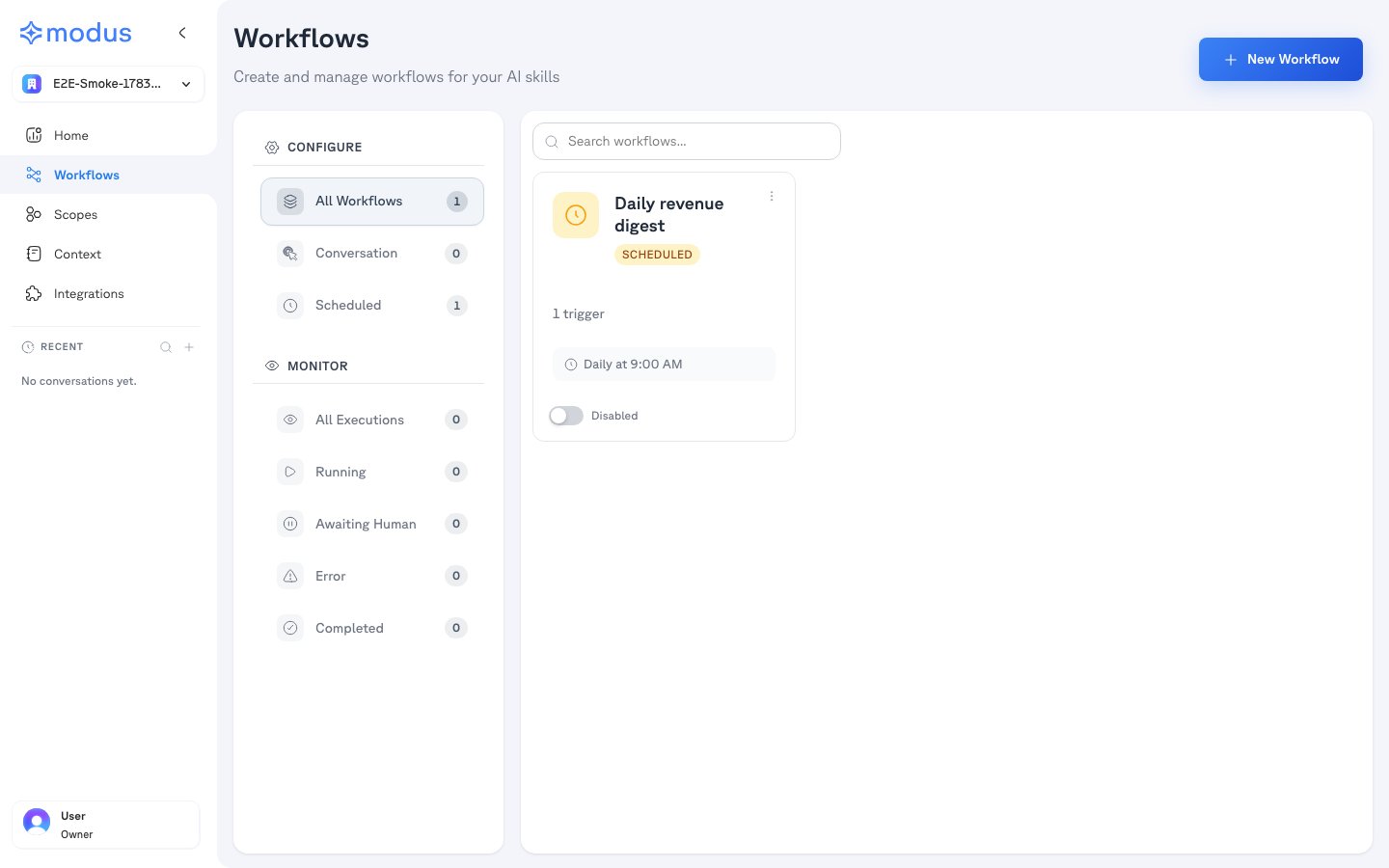
* **Configure** — create and manage workflows, filtered by trigger type (**All Workflows**, **Conversation**, **Scheduled**, and more). Each workflow card shows its trigger, a summary of its steps, and an **Active / Disabled** toggle, and can be run directly.
* **Monitor** — track execution history across **All Executions**, **Running**, **Awaiting Human**, **Error**, and **Completed**, so you can see what ran and step in when a run needs a person.
## Building a workflow
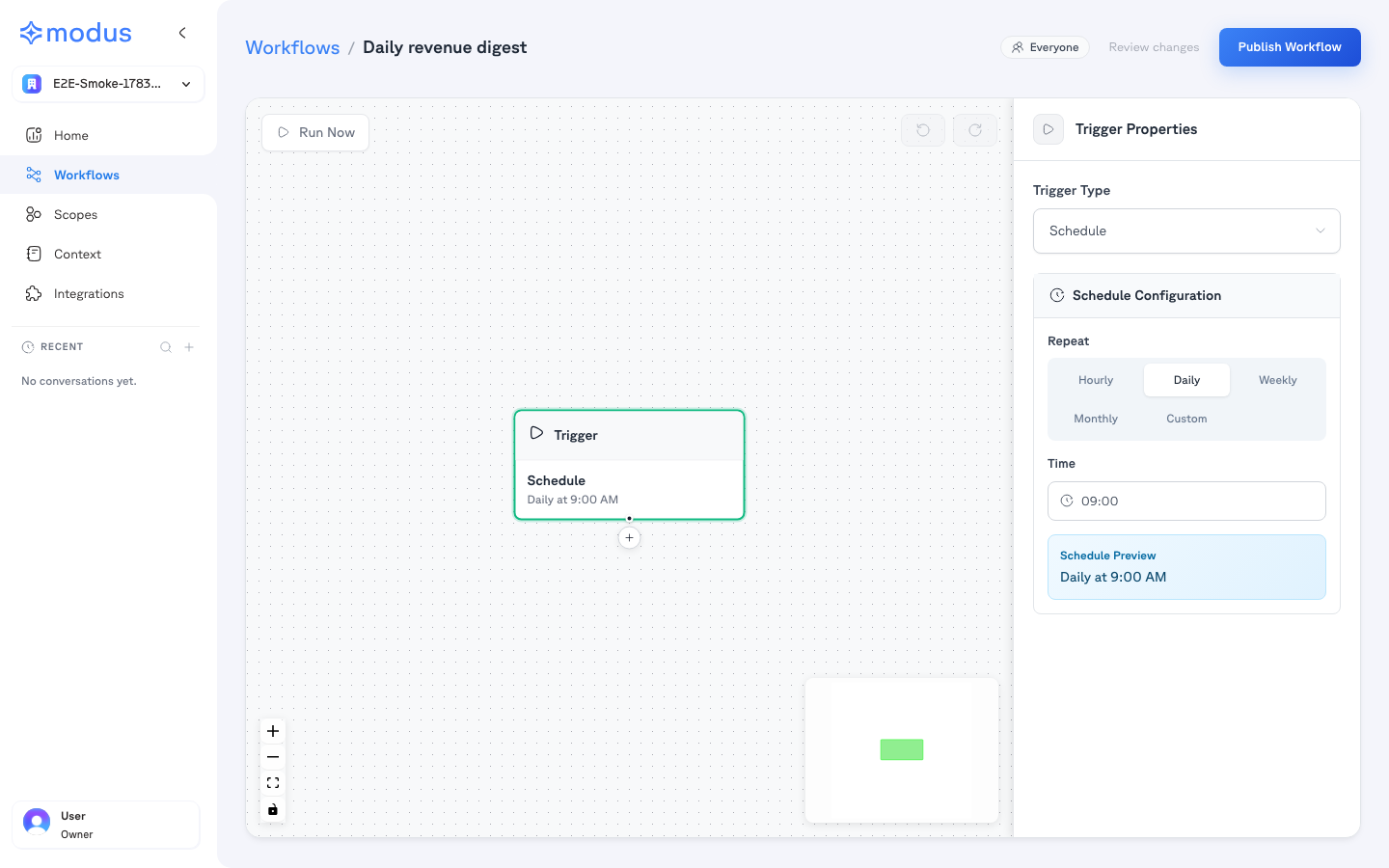
**New Workflow** opens the visual builder. You start with a **Trigger** and add
steps onto the canvas; a properties panel on the right configures whichever node
is selected. **Run Now** tests the whole pipeline in-canvas, showing each step's
status as it executes.
## Configure and Monitor
The left sub-nav has two modes:
* **Configure** — create and manage workflows, filtered by trigger type (**All Workflows**, **Conversation**, **Scheduled**, and more). Each workflow card shows its trigger, a summary of its steps, and an **Active / Disabled** toggle, and can be run directly.
* **Monitor** — track execution history across **All Executions**, **Running**, **Awaiting Human**, **Error**, and **Completed**, so you can see what ran and step in when a run needs a person.
## Building a workflow
**New Workflow** opens the visual builder. You start with a **Trigger** and add
steps onto the canvas; a properties panel on the right configures whichever node
is selected. **Run Now** tests the whole pipeline in-canvas, showing each step's
status as it executes.
 ### Node types
The starting point — defines how and when the workflow runs (see triggers below).
Runs one or more [scopes](/guides/scopes) on a task, with its own model — the reasoning step of the pipeline.
Performs a concrete action: run SQL, call an API, search the web, or use a connected app's tool.
Branches the flow based on results — with plain-language or deterministic rules.
Pauses for a person to **approve** (or approve/decline) before continuing, routed to Slack or Teams.
## Triggers
The Trigger node decides how a workflow starts. As shown above, a **Scheduled**
trigger offers **hourly / daily / weekly / monthly / custom** repeats with a time
and timezone, and a live schedule preview. Other trigger types include:
* **Conversation** — run it from a chat on [Home](/guides/home), with each step rendered inline.
* **Scheduled** — run automatically on a recurring schedule.
* **Webhook / API / Slack** — start from external events (where enabled).
## Publishing and running
While you build, the workflow stays a draft that auto-saves. Publish it and flip
the card to **Active** to arm its trigger; keep it **Disabled** to pause it
without deleting. Conversation-triggered workflows also appear in the assistant
selector on [Home](/guides/home) so you can run them by hand.
## Monitoring runs
Every run shows up under **Monitor** with a **status** — **Completed**,
**Running**, **Awaiting Human**, **Error**, **Cancelled**, or **Approval timed
out** — plus its trigger, start time, and duration. Open a run to see a
step-by-step timeline (failed steps expand automatically). When a run reaches a
**Human** step, approvers can **Approve** or **Decline** right from the run
detail, and the workflow resumes accordingly.
## Where workflows fit
Workflows sit at the top of the pipeline: they orchestrate
[scopes](/guides/scopes), which draw on your [context](/guides/context), which
comes from your [integrations](/guides/connect-apps).
Start simple: a single scheduled Agent step that answers a recurring question,
then add a Condition and an Action (or a Human approval) as your needs grow.
### Node types
The starting point — defines how and when the workflow runs (see triggers below).
Runs one or more [scopes](/guides/scopes) on a task, with its own model — the reasoning step of the pipeline.
Performs a concrete action: run SQL, call an API, search the web, or use a connected app's tool.
Branches the flow based on results — with plain-language or deterministic rules.
Pauses for a person to **approve** (or approve/decline) before continuing, routed to Slack or Teams.
## Triggers
The Trigger node decides how a workflow starts. As shown above, a **Scheduled**
trigger offers **hourly / daily / weekly / monthly / custom** repeats with a time
and timezone, and a live schedule preview. Other trigger types include:
* **Conversation** — run it from a chat on [Home](/guides/home), with each step rendered inline.
* **Scheduled** — run automatically on a recurring schedule.
* **Webhook / API / Slack** — start from external events (where enabled).
## Publishing and running
While you build, the workflow stays a draft that auto-saves. Publish it and flip
the card to **Active** to arm its trigger; keep it **Disabled** to pause it
without deleting. Conversation-triggered workflows also appear in the assistant
selector on [Home](/guides/home) so you can run them by hand.
## Monitoring runs
Every run shows up under **Monitor** with a **status** — **Completed**,
**Running**, **Awaiting Human**, **Error**, **Cancelled**, or **Approval timed
out** — plus its trigger, start time, and duration. Open a run to see a
step-by-step timeline (failed steps expand automatically). When a run reaches a
**Human** step, approvers can **Approve** or **Decline** right from the run
detail, and the workflow resumes accordingly.
## Where workflows fit
Workflows sit at the top of the pipeline: they orchestrate
[scopes](/guides/scopes), which draw on your [context](/guides/context), which
comes from your [integrations](/guides/connect-apps).
Start simple: a single scheduled Agent step that answers a recurring question,
then add a Condition and an Action (or a Human approval) as your needs grow.