> ## Documentation Index
> Fetch the complete documentation index at: https://docs.getmodus.com/llms.txt
> Use this file to discover all available pages before exploring further.
# Tableau
> Connect your Tableau site to Modus so your scopes have rich context about your dashboards and data sources.
Connect your Tableau site to Modus so its workbooks, views, and published data
sources become context that Modus can reason over. Modus connects
**read-only** using a Direct Trust connected app and stores its signing secret
encrypted in AWS Secrets Manager.
## Prerequisites
Before you begin, make sure you have:
* A **Tableau Cloud** site (or Tableau Server) and its **hostname**.
* A **Direct Trust connected app** (created below) — its Client ID, Secret ID, and Secret Value.
* A **Tableau user** whose email Modus will use as the JWT subject, with read access to the content you want Modus to use.
## Set up a connected app
Modus authenticates with a **Direct Trust connected app** (JWT).
In Tableau, open **Settings → Connected Apps** and create a **Direct Trust**
app. Copy the **Client ID**.
Add a secret to the app and copy both the **Secret ID** and the **Secret
Value**. Then **enable** the connected app.
Pick a Tableau user (by email) with read access to the target content — Modus
signs its JWT as this user. The connected app must permit these scopes:
* `tableau:content:read`
* `tableau:datasources:download`
* `tableau:workbooks:download`
* `tableau:views:download`
## Network access
If you run **Tableau Server** behind a firewall, allow Modus's egress IP
addresses so it can reach your instance. See [IP Allowlisting](/guides/ip-allowlist).
(Tableau Cloud is reachable directly.)
## Connect in Modus
1. Log into [Modus](https://app.getmodus.com).
2. Click **Integrations** in the left sidebar.
3. Find the **Tableau** card under **BI & Visualization** and click **Connect**.
Complete the form using the [field reference](#connection-form-field-reference) below.
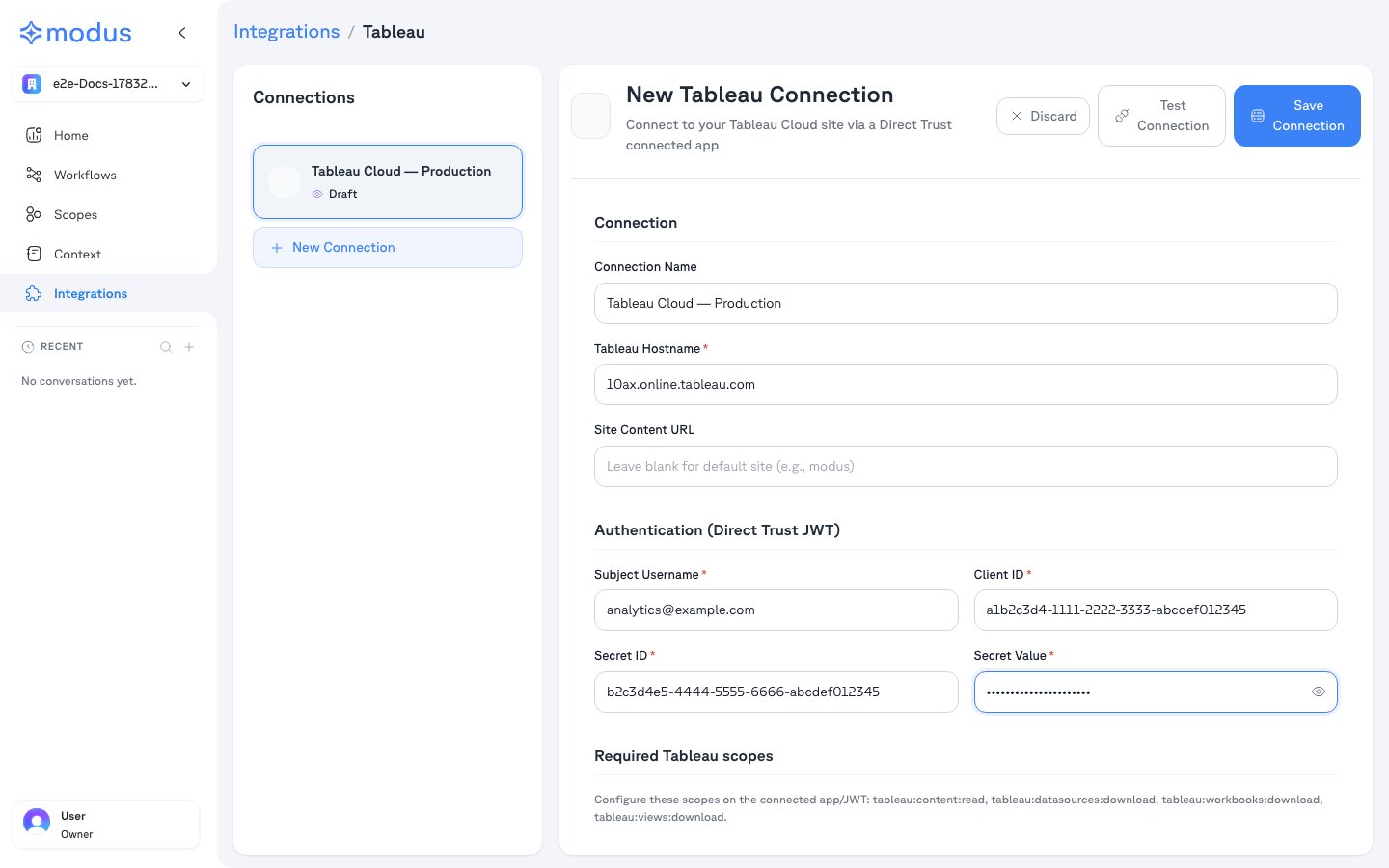 1. Click **Test Connection** to verify Modus can reach your site.
2. Click **Save Connection**.
## Connection form field reference
| Field | Description | Example |
| --------------------------------- | ---------------------------------------------- | ---------------------------- |
| **Connection Name** | A friendly name for this connection | `Tableau Cloud — Production` |
| **Tableau Hostname** | Your Tableau host | `10ax.online.tableau.com` |
| **Site Content URL** *(optional)* | Site's content URL; blank for the default site | `modus` |
| **Subject Username** | Tableau user email used as the JWT subject | `analytics@example.com` |
| **Client ID** | Connected app client ID | *(from Tableau)* |
| **Secret ID** | Connected app secret ID | *(from Tableau)* |
| **Secret Value** | Connected app signing secret | *(your secret)* |
## Troubleshooting
| Symptom | Likely cause |
| --------------------------------- | ------------------------------------------------------------------------------- |
| **Sign-in failed** | Wrong Client ID / Secret ID / Secret Value, or the connected app is disabled. |
| **Insufficient scope** | The connected app is missing one of the required scopes above. |
| **User not found / unauthorized** | The **Subject Username** isn't a valid Tableau user with content access. |
| **Wrong site** | The **Site Content URL** doesn't match your site (leave blank for the default). |
## Verification
Your Tableau site is now connected. Modus turns your workbooks, views, and
published data sources into context so Modus can give accurate,
data-aware answers.
Need help? Contact us at [support@getmodus.com](mailto:support@getmodus.com).
Modus connects read-only and requests only the minimum scopes needed to
understand your content. The signing secret is encrypted and stored in AWS
Secrets Manager — never in plaintext.
1. Click **Test Connection** to verify Modus can reach your site.
2. Click **Save Connection**.
## Connection form field reference
| Field | Description | Example |
| --------------------------------- | ---------------------------------------------- | ---------------------------- |
| **Connection Name** | A friendly name for this connection | `Tableau Cloud — Production` |
| **Tableau Hostname** | Your Tableau host | `10ax.online.tableau.com` |
| **Site Content URL** *(optional)* | Site's content URL; blank for the default site | `modus` |
| **Subject Username** | Tableau user email used as the JWT subject | `analytics@example.com` |
| **Client ID** | Connected app client ID | *(from Tableau)* |
| **Secret ID** | Connected app secret ID | *(from Tableau)* |
| **Secret Value** | Connected app signing secret | *(your secret)* |
## Troubleshooting
| Symptom | Likely cause |
| --------------------------------- | ------------------------------------------------------------------------------- |
| **Sign-in failed** | Wrong Client ID / Secret ID / Secret Value, or the connected app is disabled. |
| **Insufficient scope** | The connected app is missing one of the required scopes above. |
| **User not found / unauthorized** | The **Subject Username** isn't a valid Tableau user with content access. |
| **Wrong site** | The **Site Content URL** doesn't match your site (leave blank for the default). |
## Verification
Your Tableau site is now connected. Modus turns your workbooks, views, and
published data sources into context so Modus can give accurate,
data-aware answers.
Need help? Contact us at [support@getmodus.com](mailto:support@getmodus.com).
Modus connects read-only and requests only the minimum scopes needed to
understand your content. The signing secret is encrypted and stored in AWS
Secrets Manager — never in plaintext.