> ## Documentation Index
> Fetch the complete documentation index at: https://docs.getmodus.com/llms.txt
> Use this file to discover all available pages before exploring further.
# Scopes
> The Modus Scopes page — build specialist AI configurations with their own instructions, context, connections, tools, memory, evaluations, and access.
**Scopes** are your specialist AI configurations — your "digital workforce."
Instead of one agent that tries to do everything, you create focused experts,
each scoped to a domain with just the instructions, context, and tools it needs.
A scope is reusable: tag it on [Home](/guides/home) or drop it into a
[workflow](/guides/workflows) step.
 ## The Scopes list
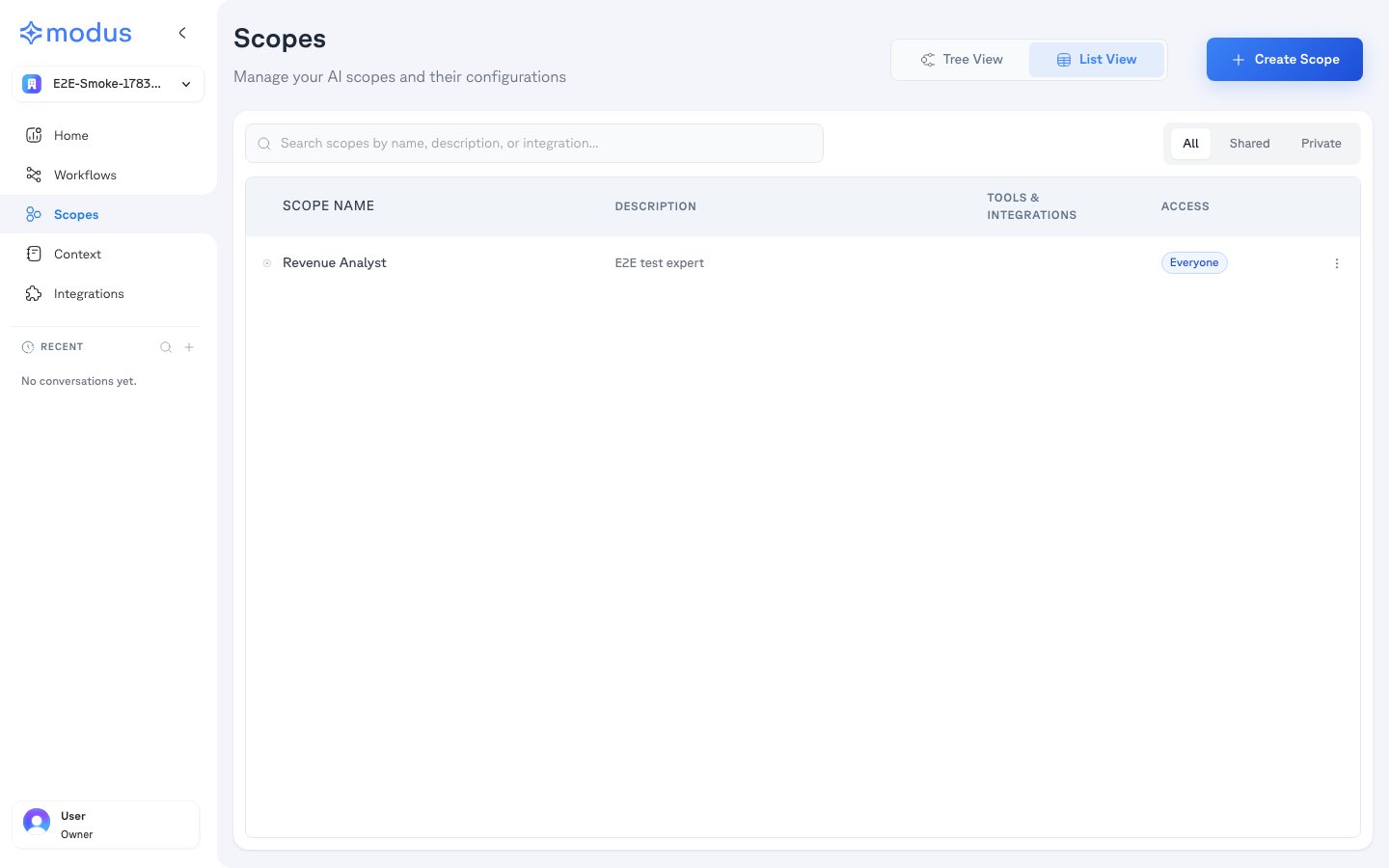
The list page manages your whole roster:
* **Create Scope** — start a new specialist, or **Duplicate** an existing one to reuse its setup.
* **Tree View / List View** — switch between the supervision hierarchy and a flat, searchable table.
* **Search** and **visibility filters** (**All / Shared / Private**) to find scopes fast.
* Each row shows the scope's **description**, its **tools & integrations**, and its **access**. Badges flag a **Draft** (never published) or **unpublished changes**.
* The row menu lets you **Publish / Deploy Changes**, **Duplicate**, or **Delete**.
When you create a scope you give it a **name** and optional **purpose**, choose a
**visibility** (**Shared** with groups in your org, or **Private** to you and
people you invite), and optionally assign a **parent scope** for supervision.
## Configuring a scope
Open a scope to configure it. Everything is organized into tabs, and a live
**test conversation** panel on the right lets you try changes as you make them.
## The Scopes list
The list page manages your whole roster:
* **Create Scope** — start a new specialist, or **Duplicate** an existing one to reuse its setup.
* **Tree View / List View** — switch between the supervision hierarchy and a flat, searchable table.
* **Search** and **visibility filters** (**All / Shared / Private**) to find scopes fast.
* Each row shows the scope's **description**, its **tools & integrations**, and its **access**. Badges flag a **Draft** (never published) or **unpublished changes**.
* The row menu lets you **Publish / Deploy Changes**, **Duplicate**, or **Delete**.
When you create a scope you give it a **name** and optional **purpose**, choose a
**visibility** (**Shared** with groups in your org, or **Private** to you and
people you invite), and optionally assign a **parent scope** for supervision.
## Configuring a scope
Open a scope to configure it. Everything is organized into tabs, and a live
**test conversation** panel on the right lets you try changes as you make them.
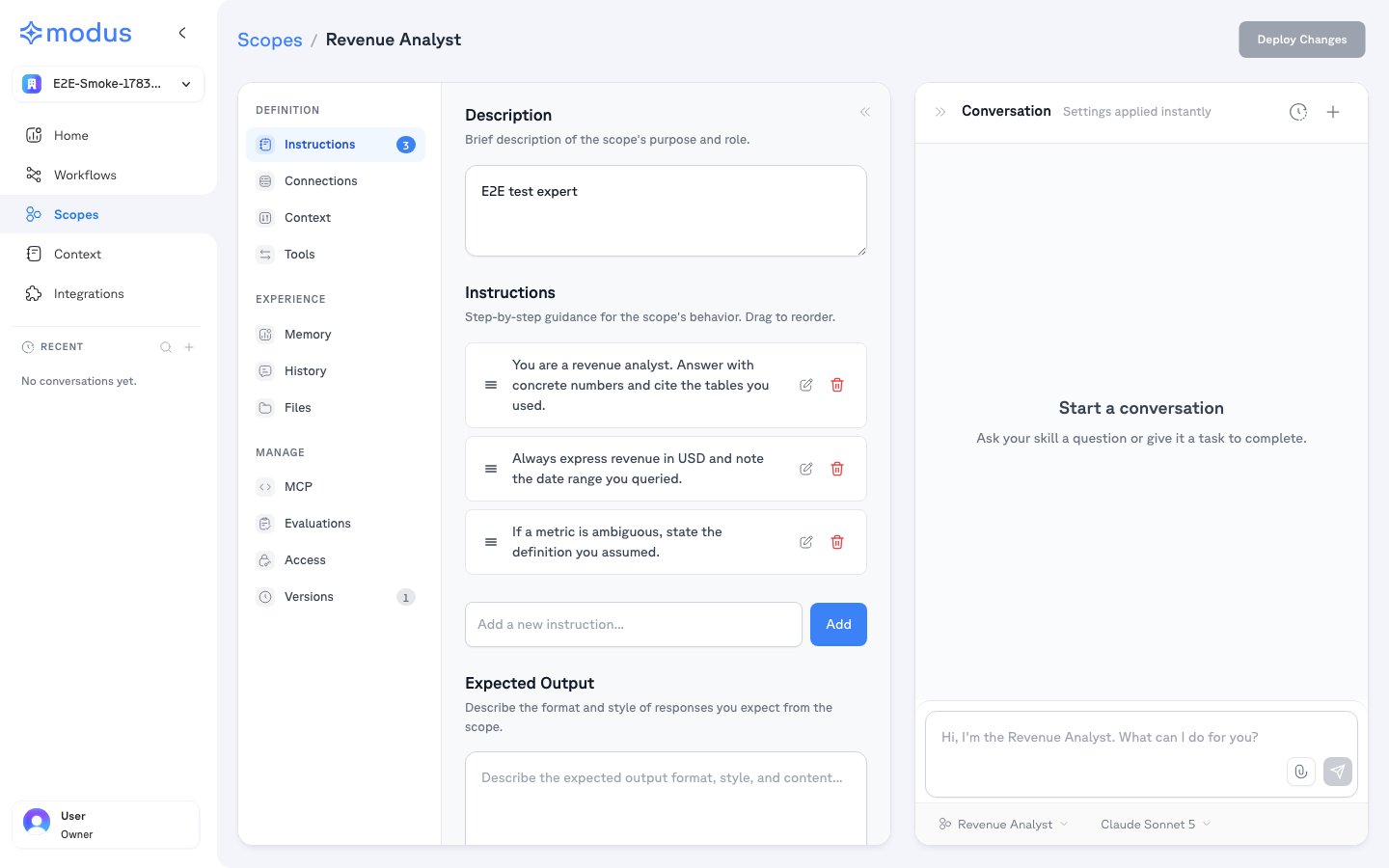 A short **description** of the scope's role, an ordered, drag-to-reorder list
of **instructions** (its operating rules), and an optional **expected output**
format. This is the scope's system prompt.
Select the [integrations](/guides/connect-apps) this scope may query, down to
specific databases and schemas, plus tool-actions for SQL, BI, coding, and
messaging connections. Keeping this tight is what makes a scope focused.
Choose the slice of your [context](/guides/context) available to this scope —
driven by its connections, plus any specific notes, files, saved queries, or
links you attach. A coverage view shows what's included.
Enable the general tools this scope may use (for example web search, file
publishing, and connected app actions). Connection-scoped SQL access lives in
the Connections tab.
Let the scope save and reuse memories from conversations, and search or manage
what it has stored.
Lists every conversation with the scope — searchable and filterable by time
and user.
Browses conversation files and files the scope has published.
Define test cases — a task plus an expected output judged by an LLM — and run
them to track whether the scope still behaves as intended after changes.
Exposes the published scope to external AI tools like Claude, Cursor, and
ChatGPT — see [Connecting AI tools](/guides/mcp). Copy per-host install
snippets, toggle **Core Tools** (`chat`, `get_context`), and choose which
integration tools appear in the MCP catalog.
Controls ownership, Shared/Private visibility, group-based **Use** vs.
**Manage** permissions, external invites, and safety **guardrails**.
Click **Versions** in the left nav to open the version history side panel.
Every publish creates a version — review a diff of what changed between versions
and **restore** a previous configuration if needed.
## Publishing and versioning
While you edit, changes stay in a **draft**. Click **Publish Scope** to make it
live; after that, edits show as unpublished changes and you **Deploy Changes**
(with a review of what changed) to roll them out. The **Versions** tab keeps the
full history so you can compare or roll back.
## Supervision and hierarchy
A scope can have a **parent** that coordinates it, letting a supervisor delegate
to focused sub-scopes. Use **Tree View** to see and manage this hierarchy — a
good pattern when one broad request is best answered by several narrow experts.
## Using scopes
Once published, a scope is available on [Home](/guides/home) — open the **Scopes**
dropdown and tag it to bring its expertise and context into the conversation.
Scopes are also the building blocks of [workflows](/guides/workflows), where each
AI step runs a scope.
Give each scope a narrow focus and only the context it needs. Smaller, focused
scopes are faster, cheaper, and more accurate than one broad one — and easier
to evaluate and trust.
A short **description** of the scope's role, an ordered, drag-to-reorder list
of **instructions** (its operating rules), and an optional **expected output**
format. This is the scope's system prompt.
Select the [integrations](/guides/connect-apps) this scope may query, down to
specific databases and schemas, plus tool-actions for SQL, BI, coding, and
messaging connections. Keeping this tight is what makes a scope focused.
Choose the slice of your [context](/guides/context) available to this scope —
driven by its connections, plus any specific notes, files, saved queries, or
links you attach. A coverage view shows what's included.
Enable the general tools this scope may use (for example web search, file
publishing, and connected app actions). Connection-scoped SQL access lives in
the Connections tab.
Let the scope save and reuse memories from conversations, and search or manage
what it has stored.
Lists every conversation with the scope — searchable and filterable by time
and user.
Browses conversation files and files the scope has published.
Define test cases — a task plus an expected output judged by an LLM — and run
them to track whether the scope still behaves as intended after changes.
Exposes the published scope to external AI tools like Claude, Cursor, and
ChatGPT — see [Connecting AI tools](/guides/mcp). Copy per-host install
snippets, toggle **Core Tools** (`chat`, `get_context`), and choose which
integration tools appear in the MCP catalog.
Controls ownership, Shared/Private visibility, group-based **Use** vs.
**Manage** permissions, external invites, and safety **guardrails**.
Click **Versions** in the left nav to open the version history side panel.
Every publish creates a version — review a diff of what changed between versions
and **restore** a previous configuration if needed.
## Publishing and versioning
While you edit, changes stay in a **draft**. Click **Publish Scope** to make it
live; after that, edits show as unpublished changes and you **Deploy Changes**
(with a review of what changed) to roll them out. The **Versions** tab keeps the
full history so you can compare or roll back.
## Supervision and hierarchy
A scope can have a **parent** that coordinates it, letting a supervisor delegate
to focused sub-scopes. Use **Tree View** to see and manage this hierarchy — a
good pattern when one broad request is best answered by several narrow experts.
## Using scopes
Once published, a scope is available on [Home](/guides/home) — open the **Scopes**
dropdown and tag it to bring its expertise and context into the conversation.
Scopes are also the building blocks of [workflows](/guides/workflows), where each
AI step runs a scope.
Give each scope a narrow focus and only the context it needs. Smaller, focused
scopes are faster, cheaper, and more accurate than one broad one — and easier
to evaluate and trust.