> ## Documentation Index
> Fetch the complete documentation index at: https://docs.getmodus.com/llms.txt
> Use this file to discover all available pages before exploring further.
# VS Code (Copilot)
> Connect VS Code and GitHub Copilot to Modus over MCP using agent mode.
GitHub Copilot in VS Code (v1.102+) can use Modus as an MCP server in **agent
mode**, bringing your organization's scopes and context into Copilot Chat.
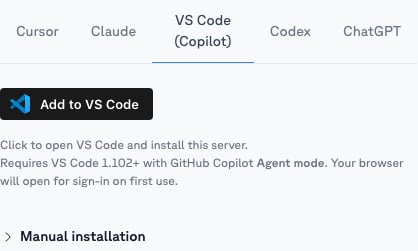 ## One-click install
Open the [scope](/guides/scopes) you want in Modus, go to its **MCP** tab, click
the **VS Code** tab, and use the install button — it opens VS Code and registers
that scope's server for you. (To connect *all* of Modus instead, use
**Account → MCP**.)
## Manual configuration
Copy the scope's URL from its **MCP** tab and add Modus to `.vscode/mcp.json` in
your workspace:
```json theme={null}
{
"servers": {
"modus-revenue-analyst": {
"type": "http",
"url": "https://mcp.getmodus.com/org//scope/"
}
}
}
```
To connect all of Modus instead, use the org-level URL
(`https://mcp.getmodus.com/modus?toolsets=context`) from **Account → MCP**.
## Sign in and use
Open Copilot Chat, switch to **Agent** mode, and start the Modus server when
prompted (or via **MCP: List Servers** in the command palette).
Your browser opens the Modus sign-in. Approve access and choose your
organization.
Ask org-grounded questions in agent mode — Copilot discovers your published
scopes and workflows and routes questions through them.
Need help? Contact us at [support@getmodus.com](mailto:support@getmodus.com).
## One-click install
Open the [scope](/guides/scopes) you want in Modus, go to its **MCP** tab, click
the **VS Code** tab, and use the install button — it opens VS Code and registers
that scope's server for you. (To connect *all* of Modus instead, use
**Account → MCP**.)
## Manual configuration
Copy the scope's URL from its **MCP** tab and add Modus to `.vscode/mcp.json` in
your workspace:
```json theme={null}
{
"servers": {
"modus-revenue-analyst": {
"type": "http",
"url": "https://mcp.getmodus.com/org//scope/"
}
}
}
```
To connect all of Modus instead, use the org-level URL
(`https://mcp.getmodus.com/modus?toolsets=context`) from **Account → MCP**.
## Sign in and use
Open Copilot Chat, switch to **Agent** mode, and start the Modus server when
prompted (or via **MCP: List Servers** in the command palette).
Your browser opens the Modus sign-in. Approve access and choose your
organization.
Ask org-grounded questions in agent mode — Copilot discovers your published
scopes and workflows and routes questions through them.
Need help? Contact us at [support@getmodus.com](mailto:support@getmodus.com).