> ## Documentation Index
> Fetch the complete documentation index at: https://docs.getmodus.com/llms.txt
> Use this file to discover all available pages before exploring further.
# Claude
> Connect Claude Desktop and Claude Code to Modus — install the Modus plugins or add the MCP server manually.
The fastest way to use Modus from Claude is the official **Modus plugins**. They
configure the MCP connection for you, and when a question depends on your
organization's knowledge, Claude uses Modus automatically — you don't need to
learn tool names.
There are two plugins:
| Plugin | Who it's for | What it can do |
| --------------- | ------------ | -------------------------------------------------------------------- |
| **Modus** | Everyone | Ask org questions, chat with scopes, run workflows. Read-only. |
| **Modus Admin** | Admins | Create, update, deploy, and delete scopes and workflows from Claude. |
Most people only need **Modus**. If you install both, sign in to each and choose
the **same organization**.
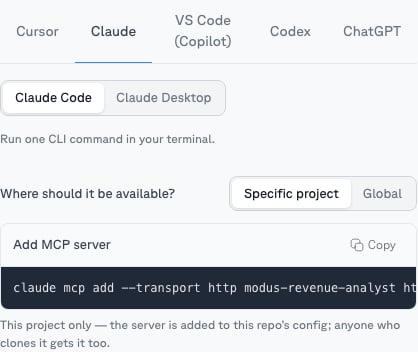
**Want just one expert?** Open a [scope](/guides/scopes) → **MCP** tab →
**Claude** and copy its `claude mcp add` command to register only that scope —
project-local or global. The rest of this guide covers connecting all of Modus.
 ## Claude Code
```
/plugin marketplace add modus-data/modus-claude-plugin
```
```
/plugin install modus@modus
```
Admins who also want to manage Modus from Claude:
```
/plugin install modus-admin@modus
```
When Claude prompts you to connect Modus (or run `/mcp`), your browser opens
a Modus sign-in. Approve the access and — if you belong to more than one —
**choose your organization**.
Then just ask: *"What does our team define as an active customer?"* Published
scopes are also available as slash commands, e.g. `/scope-revenue-analytics`.
## Claude Desktop
**Option A — plugins (recommended):**
Go to **Customize → Personal plugins → + → Add marketplace** and enter
`modus-data/modus-claude-plugin`, then **Sync**.
Install **Modus** (and optionally **Modus Admin**) from the list. When
prompted, click **Connect**, sign in in the browser, and choose your
organization.
**Option B — manual MCP server.** Claude Desktop connects to remote servers
through the `mcp-remote` proxy. Copy the ready-made snippet from a scope's
**MCP** tab (or **Account → MCP** for all of Modus) into your
`claude_desktop_config.json`:
```json theme={null}
{
"mcpServers": {
"modus": {
"command": "npx",
"args": [
"-y",
"mcp-remote",
"https://mcp.getmodus.com/modus?toolsets=context"
]
}
}
}
```
Restart Claude Desktop; the first request opens the OAuth sign-in in your
browser.
Claude Desktop doesn't support slash commands from MCP servers — use the **+**
attachment menu to pull in a scope, or simply mention it in your question.
## Switching organizations
Your connection is tied to the organization you picked at sign-in. To switch,
disconnect (or **Revoke** under **Settings → Connected apps** in Modus) and
reconnect, choosing the other organization.
Need help? Contact us at [support@getmodus.com](mailto:support@getmodus.com).
## Claude Code
```
/plugin marketplace add modus-data/modus-claude-plugin
```
```
/plugin install modus@modus
```
Admins who also want to manage Modus from Claude:
```
/plugin install modus-admin@modus
```
When Claude prompts you to connect Modus (or run `/mcp`), your browser opens
a Modus sign-in. Approve the access and — if you belong to more than one —
**choose your organization**.
Then just ask: *"What does our team define as an active customer?"* Published
scopes are also available as slash commands, e.g. `/scope-revenue-analytics`.
## Claude Desktop
**Option A — plugins (recommended):**
Go to **Customize → Personal plugins → + → Add marketplace** and enter
`modus-data/modus-claude-plugin`, then **Sync**.
Install **Modus** (and optionally **Modus Admin**) from the list. When
prompted, click **Connect**, sign in in the browser, and choose your
organization.
**Option B — manual MCP server.** Claude Desktop connects to remote servers
through the `mcp-remote` proxy. Copy the ready-made snippet from a scope's
**MCP** tab (or **Account → MCP** for all of Modus) into your
`claude_desktop_config.json`:
```json theme={null}
{
"mcpServers": {
"modus": {
"command": "npx",
"args": [
"-y",
"mcp-remote",
"https://mcp.getmodus.com/modus?toolsets=context"
]
}
}
}
```
Restart Claude Desktop; the first request opens the OAuth sign-in in your
browser.
Claude Desktop doesn't support slash commands from MCP servers — use the **+**
attachment menu to pull in a scope, or simply mention it in your question.
## Switching organizations
Your connection is tied to the organization you picked at sign-in. To switch,
disconnect (or **Revoke** under **Settings → Connected apps** in Modus) and
reconnect, choosing the other organization.
Need help? Contact us at [support@getmodus.com](mailto:support@getmodus.com).