> ## Documentation Index
> Fetch the complete documentation index at: https://docs.getmodus.com/llms.txt
> Use this file to discover all available pages before exploring further.
# Looker
> Connect your Looker instance to Modus for AI-powered visibility into your data models, explores, and dashboards.
Modus connects to your Looker instance via API credentials, giving your team
instant, AI-powered visibility into your LookML models, explores, and dashboards.
## Prerequisites
Before you begin, make sure you have:
* A **Looker** instance with admin access (or access to the Admin console).
* A **service account** in Looker with the appropriate roles — or permissions to create one.
## Looker Setup
1. In the Looker UI, open the **Admin** console from the left navigation pane.
2. Go to **General > Settings**.
3. Copy the **Host URL** — you'll need this when connecting in Modus.
1. In the Admin console left navigation pane, scroll down and click **Users**.
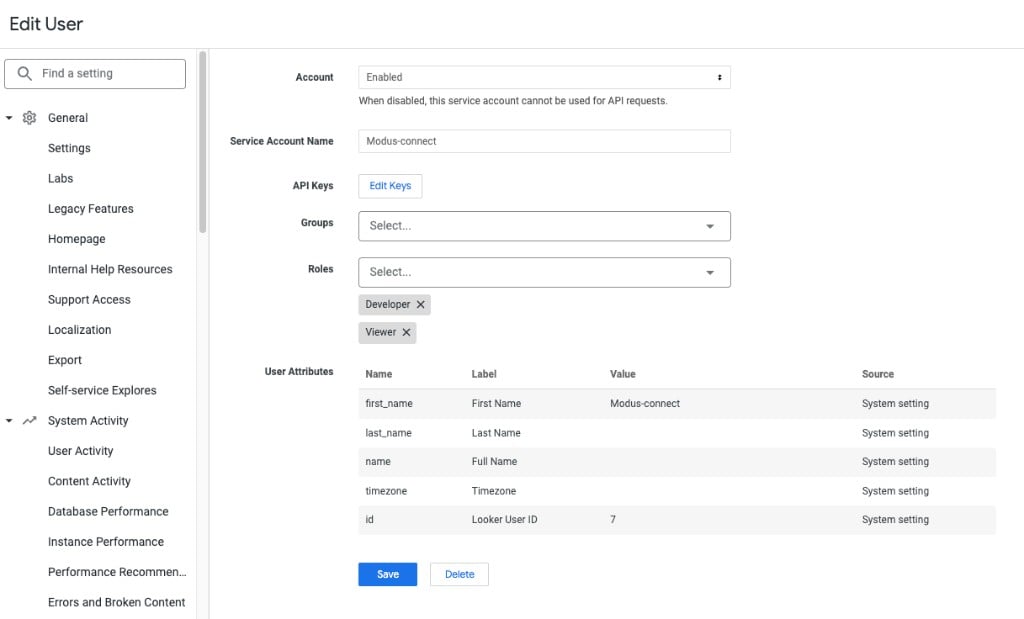
2. Switch to the **Service Accounts** tab.
3. If you already have a service account for Modus, click it to open the edit page. Otherwise, click **+ New Service Account** to create one.
4. Give the service account a descriptive name (e.g. `Modus-connect`).
5. Assign the **Developer** and **Viewer** roles so Modus can read your LookML models and explores.
 If you'd rather not grant the built-in **Developer** and **Viewer** roles,
you can create a custom role for Modus. The role needs the following
permissions:
* `access_data`
* `see_user_dashboards`
* `see_lookml_dashboards`
* `see_lookml`
* `see_sql`
* `explore`
In addition, configure the role with:
* **Model Set** — access to all models.
* **Folders** — access to all folders.
1. On the service account's edit page, find the **API Keys** section.
2. Click **Edit Keys**.
3. Create a new API key (or use an existing one).
4. Copy the **Client ID** and **Client Secret** — you'll enter these in Modus.
Treat the Client Secret like a password. Do not commit it to version
control or share it in plaintext.
## Connect in Modus
1. Log into [Modus](https://app.getmodus.com).
2. Click **Integrations** in the left sidebar, then select **Looker**.
3. Click **+ New Connection**.
Enter the following details using the values you gathered from Looker:
| Field | Value |
| ----------------------- | -------------------------------------------------------------- |
| **Connection Name** | A friendly name for this connection (e.g. `Looker Connection`) |
| **Looker Instance URL** | The Host URL from your Looker Admin settings |
| **Client ID** | The API Client ID from your service account |
| **Client Secret** | The API Client Secret from your service account |
If you'd rather not grant the built-in **Developer** and **Viewer** roles,
you can create a custom role for Modus. The role needs the following
permissions:
* `access_data`
* `see_user_dashboards`
* `see_lookml_dashboards`
* `see_lookml`
* `see_sql`
* `explore`
In addition, configure the role with:
* **Model Set** — access to all models.
* **Folders** — access to all folders.
1. On the service account's edit page, find the **API Keys** section.
2. Click **Edit Keys**.
3. Create a new API key (or use an existing one).
4. Copy the **Client ID** and **Client Secret** — you'll enter these in Modus.
Treat the Client Secret like a password. Do not commit it to version
control or share it in plaintext.
## Connect in Modus
1. Log into [Modus](https://app.getmodus.com).
2. Click **Integrations** in the left sidebar, then select **Looker**.
3. Click **+ New Connection**.
Enter the following details using the values you gathered from Looker:
| Field | Value |
| ----------------------- | -------------------------------------------------------------- |
| **Connection Name** | A friendly name for this connection (e.g. `Looker Connection`) |
| **Looker Instance URL** | The Host URL from your Looker Admin settings |
| **Client ID** | The API Client ID from your service account |
| **Client Secret** | The API Client Secret from your service account |
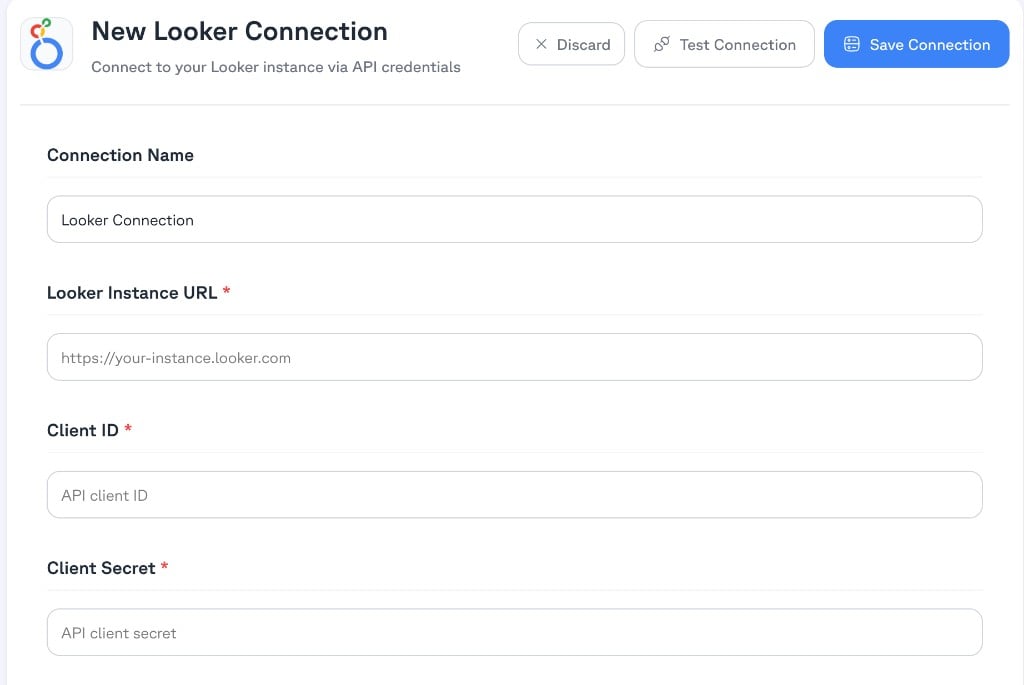 1. Click **Test Connection** to verify Modus can reach your Looker instance.
2. Click **Save Connection**.
## Connection form field reference
| Field | Description | Example |
| ----------------------- | ------------------------------------------------- | ---------------------------------- |
| **Connection Name** | A friendly name for this connection | `Production Looker` |
| **Looker Instance URL** | Your Looker instance host URL | `https://your-instance.looker.com` |
| **Client ID** | API Client ID from the Looker service account | *(from Edit Keys)* |
| **Client Secret** | API Client Secret from the Looker service account | *(from Edit Keys)* |
## Verification
Your Looker instance is now connected. Modus will begin cataloging your LookML
models, explores, and dashboards so that Modus can provide context-aware
answers about your data.
All credentials are encrypted and stored securely. Modus only requests the
minimum permissions needed to read your Looker metadata.
1. Click **Test Connection** to verify Modus can reach your Looker instance.
2. Click **Save Connection**.
## Connection form field reference
| Field | Description | Example |
| ----------------------- | ------------------------------------------------- | ---------------------------------- |
| **Connection Name** | A friendly name for this connection | `Production Looker` |
| **Looker Instance URL** | Your Looker instance host URL | `https://your-instance.looker.com` |
| **Client ID** | API Client ID from the Looker service account | *(from Edit Keys)* |
| **Client Secret** | API Client Secret from the Looker service account | *(from Edit Keys)* |
## Verification
Your Looker instance is now connected. Modus will begin cataloging your LookML
models, explores, and dashboards so that Modus can provide context-aware
answers about your data.
All credentials are encrypted and stored securely. Modus only requests the
minimum permissions needed to read your Looker metadata.