> ## Documentation Index
> Fetch the complete documentation index at: https://docs.getmodus.com/llms.txt
> Use this file to discover all available pages before exploring further.
# Databricks
> Connect your Databricks workspace to Modus so your scopes have rich context about your data.
Connect a Databricks workspace to Modus so it becomes context that Modus can
reason over. Modus understands your catalogs, schemas, tables, and columns and
makes them available as context when Modus answers questions and queries your data.
Modus connects **read-only** and stores your credentials encrypted in AWS
Secrets Manager.
## Prerequisites
Before you begin, make sure you have:
* A **Databricks workspace** with Unity Catalog.
* A **SQL warehouse** (or cluster) that is running — Modus queries through its HTTP endpoint.
* Permission to create an access token and grant read access (see below).
## Set up access
In Databricks, open **SQL Warehouses**, select your warehouse, and open the
**Connection details** tab. Copy the **Server hostname** (without `https://`)
and the **HTTP path** (e.g. `/sql/1.0/warehouses/abc123`).
Modus authenticates with a token — either a **personal access token** or a
**service principal token** (recommended for production).
* Personal access token: **Settings → Developer → Access tokens → Generate new token**.
* Service principal: create a service principal, then generate an OAuth/token for it.
Grant the token's principal read access to the catalogs and schemas Modus
should use as context. In a Databricks SQL editor, run:
```sql theme={null}
GRANT USE CATALOG ON CATALOG TO ``;
GRANT USE SCHEMA ON SCHEMA . TO ``;
GRANT SELECT ON SCHEMA . TO ``;
```
Replace `` with the user email or service principal application ID.
Repeat the schema grants for each schema you want Modus to use.
Modus reads table and column metadata from each catalog's `INFORMATION_SCHEMA`,
which is covered by the grants above. No write access is required.
## Network access
If your workspace restricts inbound access with an IP access list, allow Modus's
egress IP addresses. See [IP Allowlisting](/guides/ip-allowlist).
## Connect in Modus
1. Log into [Modus](https://app.getmodus.com).
2. Click **Integrations** in the left sidebar.
3. Find the **Databricks** card under **Databases** and click **Connect**.
Complete the form using the [field reference](#connection-form-field-reference) below.
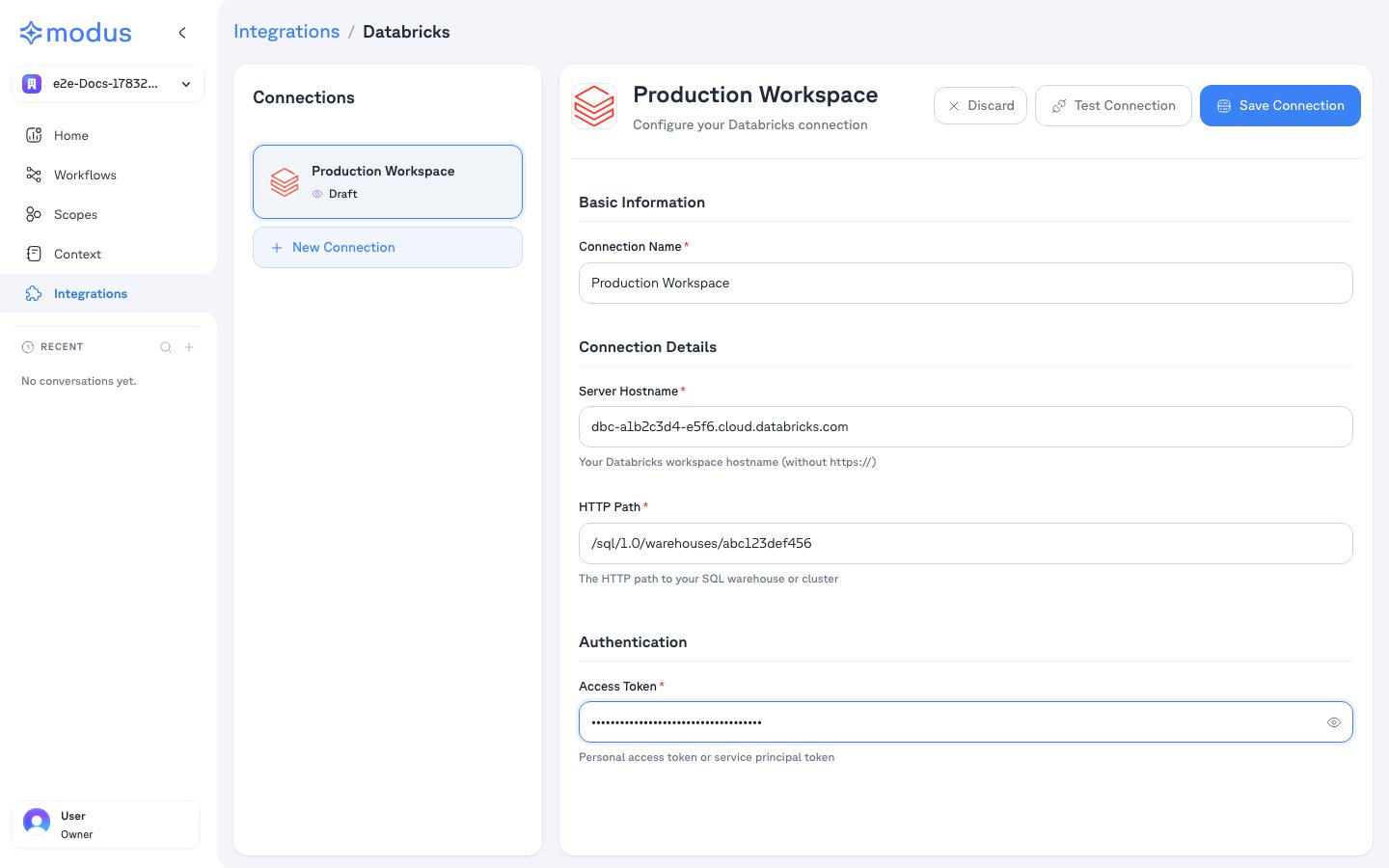 1. Click **Test Connection** to verify Modus can reach your workspace.
2. Click **Save Connection**.
After saving, Modus lists the catalogs and schemas the token can access.
Select the schemas you want Modus to use as context, then save. Nothing is
scanned without your explicit selection.
## Connection form field reference
| Field | Description | Example |
| ------------------- | ------------------------------------------------ | ---------------------------------------- |
| **Connection Name** | A friendly name for this connection | `Production Workspace` |
| **Server Hostname** | Workspace hostname, without `https://` | `dbc-a1b2c3d4-e5f6.cloud.databricks.com` |
| **HTTP Path** | HTTP path to your SQL warehouse or cluster | `/sql/1.0/warehouses/abc123def456` |
| **Access Token** | Personal access token or service principal token | `dapi...` |
## Troubleshooting
| Symptom | Likely cause |
| ---------------------------------- | -------------------------------------------------------------------------------------------------- |
| **Connection failed / timeout** | The SQL warehouse is stopped, or the HTTP path is wrong. Start the warehouse and recheck the path. |
| **Authentication failed** | The access token is invalid or expired. |
| **No schemas listed after saving** | The token's principal lacks `USE CATALOG` / `USE SCHEMA` / `SELECT`. |
## Verification
Your Databricks workspace is now connected. Modus turns the selected catalogs,
schemas, tables, and columns into context so Modus can give accurate,
data-aware answers.
Need help? Contact us at [support@getmodus.com](mailto:support@getmodus.com).
Modus connects read-only and requests only the minimum permissions needed to
understand and query your data. All credentials are encrypted and stored in AWS
Secrets Manager — your token is never stored in plaintext.
1. Click **Test Connection** to verify Modus can reach your workspace.
2. Click **Save Connection**.
After saving, Modus lists the catalogs and schemas the token can access.
Select the schemas you want Modus to use as context, then save. Nothing is
scanned without your explicit selection.
## Connection form field reference
| Field | Description | Example |
| ------------------- | ------------------------------------------------ | ---------------------------------------- |
| **Connection Name** | A friendly name for this connection | `Production Workspace` |
| **Server Hostname** | Workspace hostname, without `https://` | `dbc-a1b2c3d4-e5f6.cloud.databricks.com` |
| **HTTP Path** | HTTP path to your SQL warehouse or cluster | `/sql/1.0/warehouses/abc123def456` |
| **Access Token** | Personal access token or service principal token | `dapi...` |
## Troubleshooting
| Symptom | Likely cause |
| ---------------------------------- | -------------------------------------------------------------------------------------------------- |
| **Connection failed / timeout** | The SQL warehouse is stopped, or the HTTP path is wrong. Start the warehouse and recheck the path. |
| **Authentication failed** | The access token is invalid or expired. |
| **No schemas listed after saving** | The token's principal lacks `USE CATALOG` / `USE SCHEMA` / `SELECT`. |
## Verification
Your Databricks workspace is now connected. Modus turns the selected catalogs,
schemas, tables, and columns into context so Modus can give accurate,
data-aware answers.
Need help? Contact us at [support@getmodus.com](mailto:support@getmodus.com).
Modus connects read-only and requests only the minimum permissions needed to
understand and query your data. All credentials are encrypted and stored in AWS
Secrets Manager — your token is never stored in plaintext.