> ## Documentation Index
> Fetch the complete documentation index at: https://docs.getmodus.com/llms.txt
> Use this file to discover all available pages before exploring further.
# ClickHouse
> Connect your ClickHouse database to Modus so your scopes have rich context about your data.
Connect a ClickHouse database to Modus so it becomes context that Modus can
reason over. Modus understands your databases, tables, and columns and makes them
available as context when Modus answers questions and queries your data. Modus
connects **read-only** over the HTTP(S) interface and stores your credentials
encrypted in AWS Secrets Manager.
## Prerequisites
Before you begin, make sure you have:
* The **host** and **HTTP port** of your ClickHouse server (`8443` for HTTPS, `8123` for HTTP).
* Admin access to create a read-only user (or an existing user Modus can use).
* Network access from Modus to your server (see [Network access](#network-access)).
Modus connects over the ClickHouse **HTTP interface** (8443/8123), not the
native protocol (9000/9440). Use the HTTP port when filling the form.
## Set up a read-only user
Modus only ever reads your data. Create a dedicated read-only user and grant it
`SELECT` on the databases you want Modus to use as context. Run the following as
an admin:
```sql theme={null}
-- Create a user for Modus
CREATE USER modus_readonly IDENTIFIED BY '';
-- Grant read access to each database Modus should use as context
GRANT SELECT ON .* TO modus_readonly;
```
Replace `` with each database you want Modus to use (repeat the grant
per database), and `` with a strong password.
ClickHouse's `system` tables (`system.databases`, `system.tables`,
`system.columns`) are readable by default, so Modus can discover your metadata
without extra grants.
## Network access
ClickHouse Cloud and firewalled deployments restrict inbound access by IP. Allow
Modus's egress IP addresses so it can reach your server. See
[IP Allowlisting](/guides/ip-allowlist).
## Connect in Modus
1. Log into [Modus](https://app.getmodus.com).
2. Click **Integrations** in the left sidebar.
3. Find the **ClickHouse** card under **Databases** and click **Connect**.
Complete the form using the [field reference](#connection-form-field-reference)
below. Keep **Use SSL/TLS (HTTPS)** enabled for secure connections (port `8443`).
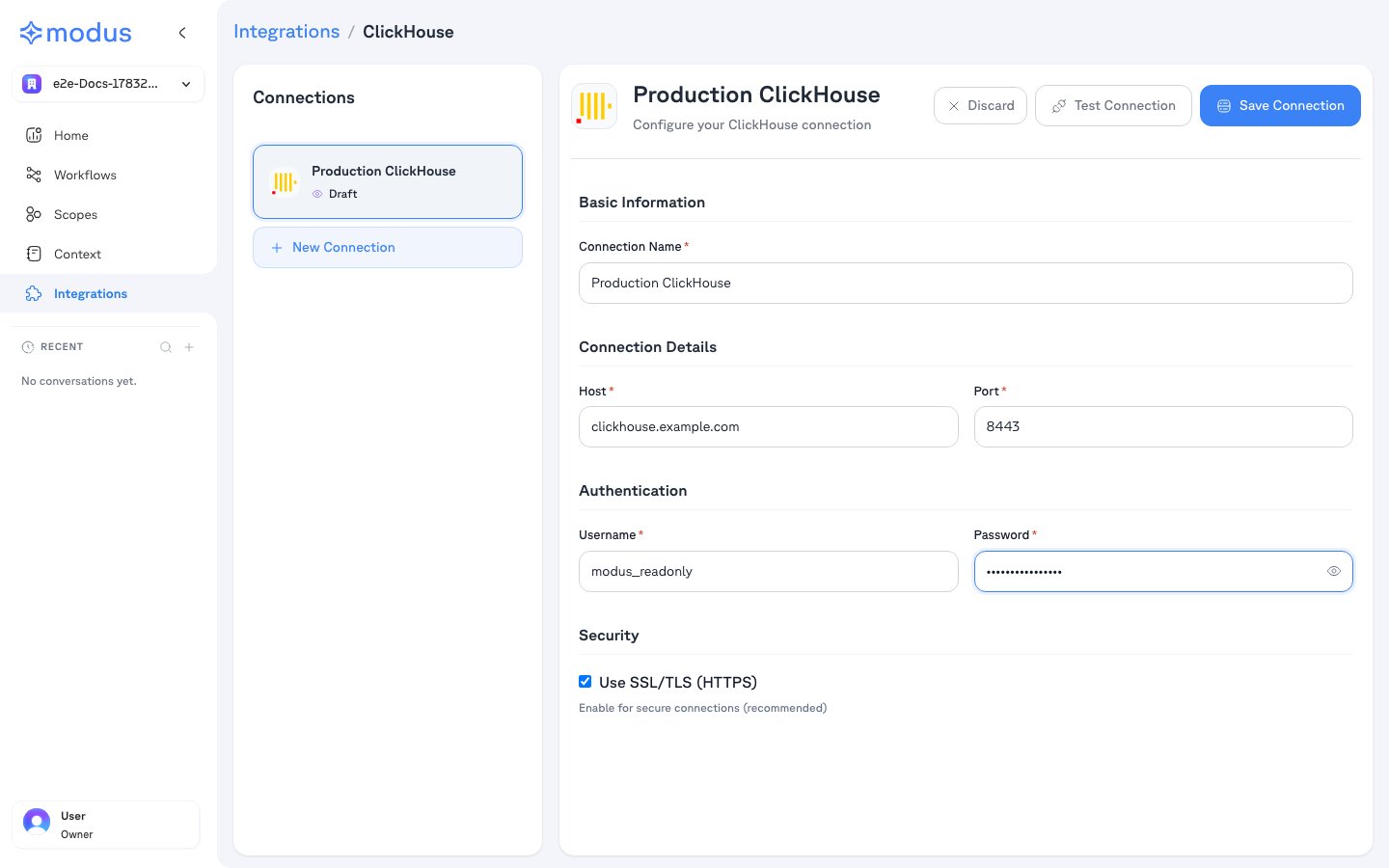 1. Click **Test Connection** to verify Modus can reach your server.
2. Click **Save Connection**.
After saving, Modus lists the databases the user can access. Select the ones
you want Modus to use as context, then save. Nothing is scanned without your
explicit selection.
## Connection form field reference
| Field | Description | Example |
| ----------------------- | -------------------------------------------------- | ------------------------ |
| **Connection Name** | A friendly name for this connection | `Production ClickHouse` |
| **Host** | Hostname of your ClickHouse server (no `https://`) | `clickhouse.example.com` |
| **Port** | HTTP interface port | `8443` |
| **Username** | The read-only user Modus uses | `modus_readonly` |
| **Password** | The user's password | *(your password)* |
| **Use SSL/TLS (HTTPS)** | Encrypt the connection (recommended) | Enabled |
## Troubleshooting
| Symptom | Likely cause |
| ------------------------------------ | ------------------------------------------------------------------------------------------------------------------------------ |
| **Connection refused / timeout** | Wrong port (use the HTTP port `8443`/`8123`), or Modus's egress IPs aren't allowlisted. See [Network access](#network-access). |
| **Authentication failed** | Wrong username or password. |
| **SSL error** | SSL toggle doesn't match the port — enable SSL for `8443`, disable for `8123`. |
| **No databases listed after saving** | The user lacks `SELECT` on the target databases. |
## Verification
Your ClickHouse database is now connected. Modus turns the selected databases,
tables, and columns into context so Modus can give accurate, data-aware
answers.
Need help? Contact us at [support@getmodus.com](mailto:support@getmodus.com).
Modus connects read-only and requests only the minimum permissions needed to
understand and query your data. All credentials are encrypted and stored in AWS
Secrets Manager — your password is never stored in plaintext.
1. Click **Test Connection** to verify Modus can reach your server.
2. Click **Save Connection**.
After saving, Modus lists the databases the user can access. Select the ones
you want Modus to use as context, then save. Nothing is scanned without your
explicit selection.
## Connection form field reference
| Field | Description | Example |
| ----------------------- | -------------------------------------------------- | ------------------------ |
| **Connection Name** | A friendly name for this connection | `Production ClickHouse` |
| **Host** | Hostname of your ClickHouse server (no `https://`) | `clickhouse.example.com` |
| **Port** | HTTP interface port | `8443` |
| **Username** | The read-only user Modus uses | `modus_readonly` |
| **Password** | The user's password | *(your password)* |
| **Use SSL/TLS (HTTPS)** | Encrypt the connection (recommended) | Enabled |
## Troubleshooting
| Symptom | Likely cause |
| ------------------------------------ | ------------------------------------------------------------------------------------------------------------------------------ |
| **Connection refused / timeout** | Wrong port (use the HTTP port `8443`/`8123`), or Modus's egress IPs aren't allowlisted. See [Network access](#network-access). |
| **Authentication failed** | Wrong username or password. |
| **SSL error** | SSL toggle doesn't match the port — enable SSL for `8443`, disable for `8123`. |
| **No databases listed after saving** | The user lacks `SELECT` on the target databases. |
## Verification
Your ClickHouse database is now connected. Modus turns the selected databases,
tables, and columns into context so Modus can give accurate, data-aware
answers.
Need help? Contact us at [support@getmodus.com](mailto:support@getmodus.com).
Modus connects read-only and requests only the minimum permissions needed to
understand and query your data. All credentials are encrypted and stored in AWS
Secrets Manager — your password is never stored in plaintext.